Exporting multiple diagrams as images
You can export diagrams in your project to image files. You can specify not only the quality and format (e.g. JPG, PNG, SVG, EMF, PDF) of images but also to slice diagram into pieces for easier insertion into documents.
Export diagrams
- Select Project > Export > Diagrams as Image... from toolbar.
- In the Export Diagrams as Image window, select the diagram(s) to export.
- Specify the output destination for storing the image files.
- Click Export button to export the diagrams.
An overview of Export Diagrams as Image
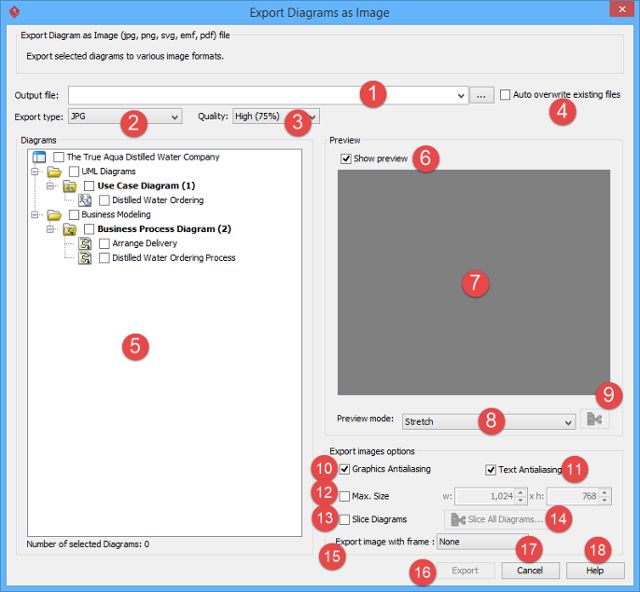 |
| An overview of Export Diagrams as Image window |
|
|||||||||||||||||||||||||||||||||||||||||||||||||||||||||
| Description of Diagram Exporter window |
Slice a diagram into pieces with diagram slicer
You can slice diagrams into pieces (number of files) as well as restrict the size of the exported diagrams.
The slice diagram window
The way how diagram is sliced can be set per diagram or to all diagrams. To slice a diagram, click on the slice button right under the diagram preview in the Diagram Exporter window. To slice all diagrams, enable Slice Diagrams and click on Slice All Diagrams button. Both ways open the Diagram Slicer for configuring how diagram(s) is to be sliced.
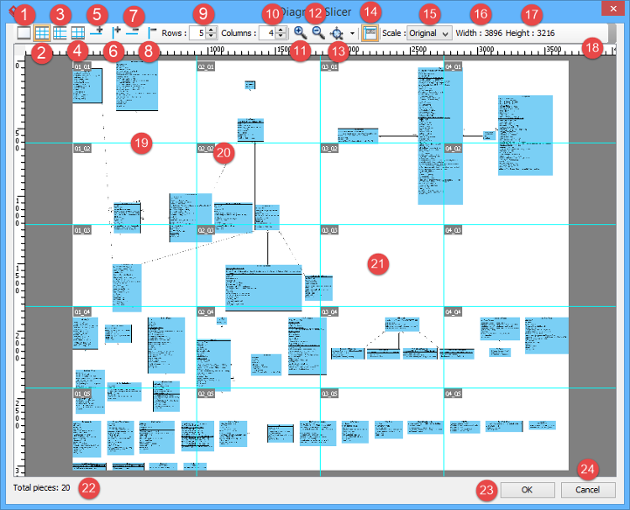 |
| An overview of Diagram Slicer window |
Below is the description of different parts of the window.
|
|||||||||||||||||||||||||||||||||||||||||||||||||||||||||||||||||||||||||||
| Description of Diagram Slicer window |
Slicing strategies
There are three slicing strategies - Fixed Size, Free Slicing and Fixed Ratio. Each gives a distinct way of slicing images.
Fixed size
Fixed Size is a simple strategy which slice exported diagram into pieces that have the same size. User specifies the number of columns and rows to slice and then the exported diagram will be sliced into specific pieces.
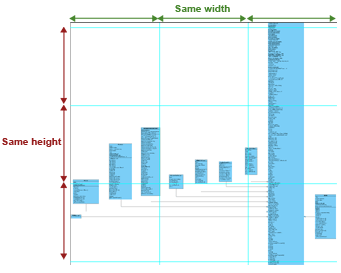 |
| Fixed Size |
Free slicing
User can customize how to slice the exported diagram by specifying the position of vertical slices and horizontal slices. It is particularly useful to prevent a shape from being sliced into pieces.
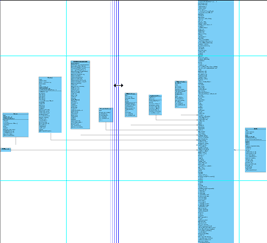 |
| Free Slicing |
Fixed ratio
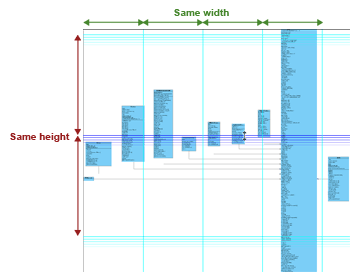
Fixed Ratio strategy gains the benefit of Fixed Slice and Free Slicing. The width and height of pieces are the same but last row and column. User can also customize the width and height of sliced pieces. Like Free Slicing, Fixed Ratio is size oriented. User modifies the size of pieces and Diagram Slicer calculates the number of row and column to slice.
 |
| Fixed Ratio |
Controlling size of exported image
Diagram Slicer not only slice diagram into pieces but also controls the total size of the exported diagrams. There are scale controls on the right of the toolbar from the Diagram Slicer dialog. By default, the type of scale is Original. And it shows the size of diagram. The following are some of the possible ways of controlling diagram size.
Control by size
To control the total size of the exported diagram by specific width and height, select Size from the Scale combo box and then enter the width and height of the diagram. The ruler shows the size of the diagram.
Control by ratio
To control the total size of the exported diagram by specific ratio, select Ratio from the Scale combo box and enter the ratio in the field next to the combo box. The total size of the exported diagram shows next to that field.
Related Resources
The following resources may help you to learn more about the topic discussed in this page.
| 1. Exporting active diagram as image | Table of Contents | 3. Exporting portion of diagram as image |
