How to Import Visio Drawing as Stencil?
Convert Visio drawings into Visual Paradigm stencil shapes, and then use them in your software design. In this tutorial, you can learn how to import Visio drawings into Visual Paradigm as stencil shapes and create diagram using those imported stencils.
Creating a Visio Drawing
- In Microsoft Visio, select a category and then double-click your target template.

- Drag Car 1, Tree, Block 7, and Factory from the toolbar and drop them onto the diagram pane.

- Finally, save the drawing as a
.vdxfile and enter the file name as visio-drawing.vdx.
Importing a Visio Drawing
- In Visual Paradigm, open the Stencil pane by selecting View > Panes > Stencil from the toolbar.
- Click Import Stencil...

- Select the location where you've stored visio-drawing.vdx previously in the Import dialog box.
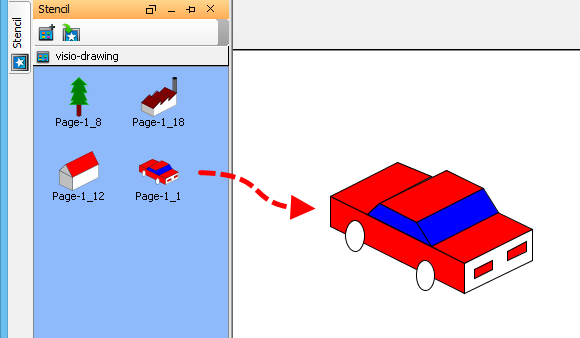
- As a result, the Visio drawings are shown on the Stencil pane.

- Open a diagram and drag the car onto the diagram.