How to Develop As-Is and To-Be Business Process?
Developing and populating As-Is and To-Be BPMN diagrams is an effective technique for turning a vision into results. The As-Is diagram offers a detailed overview of the current state of the organization's process, culture, and capabilities. The To-Be diagram, on the other hand, provides an overview of the future state, outlining how the organization's process, culture, and capabilities will appear in the future. By creating these diagrams, organizations can analyze and identify gaps between the current and desired states and initiate business process reengineering or improvement initiatives to close these gaps.
What is an As-Is Process?
An As-Is business process provides a comprehensive overview of a company's current processes, culture, and capabilities. It documents how work is currently done and how information flows throughout the organization. The primary purpose of an As-Is business process is to establish a baseline for identifying areas of improvement, optimizing resource utilization, and ultimately boosting efficiency and productivity. By understanding the current state of operations, organizations can develop strategies to eliminate bottlenecks, reduce waste, and enhance overall business processes.
What is a To-Be Process?
A To-Be business process outlines the future state of a company's processes, culture, and capabilities. It serves as a roadmap for change, clearly defining the organization's goals and what it needs to do to achieve them. The purpose of a To-Be business process is to provide a clear vision of the future and to identify the steps required to get there. This allows organizations to prioritize and focus on the most critical changes needed to close the gap between their current and desired states.
Software Tool We'll Be Using
In this tutorial, we will use Visual Paradigm to create BPMN-compliant business process diagrams. Visual Paradigm provides a robust set of tools for capturing current business processes, designing improvements, and identifying the differences between the "as-is" and "to-be" states.
Capturing the Current Process in an As-Is Model
Let's consider an online shop as an example. The process begins when a sales representative receives a purchase order and checks the stock level. If there is enough stock to fulfill the order, the sales representative packs the items and ships them with an invoice. If there is insufficient stock, the sales representative informs the customer and suggests modifying the order. This example highlights the importance of monitoring stock levels to ensure timely and efficient order fulfillment.
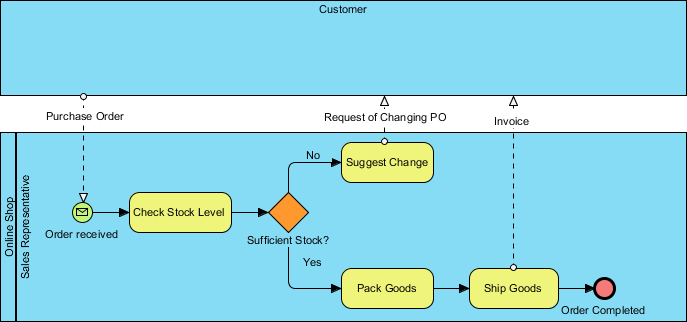
We will not cover the basics of drawing a business process diagram using Business Process Modeling Notation (BPMN) in this tutorial, as we have another tutorial that covers this topic. We also have a video tutorial called Introduction to BPMN - Swimlanes available for you.
Once you have documented your existing business process, you can create a To-Be process model by considering the necessary improvements. Follow the steps below to see how this works.
- Download Online-Shopping.vpp. You can also find this file at the bottom of this tutorial.
- Open the downloaded .vpp file in Visual Paradigm by selecting Project > Open from the application toolbar.
- Open the Project Browser by selecting View > Project Browser from the application toolbar.
- Navigate to the Model Structure tab.

- Right-click on the project root node in the tree on the left and select Model > As-Is Process from the popup menu.

- Right-click on As-Is Process and select Sub Diagrams > Existing Diagrams... from the popup menu.

-
In the Add Sub Diagram window, select the business process diagram and click OK.

Your existing process is now contained within the As-Is Process model.
Re-designing and Enhancing the Process in a To-Be Model
Let's assume our business has grown significantly, and we have a new warehouse to manage our inventory. To make the most of our new resources, we need to optimize our existing process. We will demonstrate how to depict this improvement by creating a To-Be process diagram.
- Open the business process diagram by double-clicking its thumbnail in the Project Browser.
-
Create a To-Be process diagram from the current process diagram. Right-click on any empty space in the As-Is process diagram and select Utilities > Create To-be Process.
A new diagram will be created, containing the To-Be process.
Note: All model elements in the new diagram are selected by default. To deselect them, click on any empty space in the background.
- Add a new lane to the Online Shop pool and name it Warehouse. In the Sales Representative lane, select the Pack Goods, Ship Goods, and Order completed tasks and drag them into the Warehouse lane. Your diagram should now look like this:

- Next, we will insert a task between the Sufficient Stock? gateway and the Pack Goods task. Hover your mouse over the Yes flow and click on the Split with Shape resource button.

- Select Task from the resource catalog.

- Name the new task Request Pack Goods. The completed To-Be process diagram should look like this:

Comparing Changes Between As-Is and To-Be Processes
To visually compare the differences between two diagrams, we can use a feature called Visual Diff.
- Select Modeling > Visual Diff... from the application toolbar.
- In the Visual Diff window, select Transitor as the Strategy. For Compare, choose Model Element to compare the diagrams at the model element level.

-
Check the Use Working Project checkbox. Select As-Is Process on the left and To-Be Process on the right. The comparison will be triggered automatically.

The list below the diagrams shows the differences. For example, the entry Pack Goods (Modified) indicates that changes were made to the Pack Goods task. Clicking on this entry will highlight the corresponding changes in purple in the diagrams.
New tasks are also identified. Remember that we added a new task for the sales representative to request packing? That change is also highlighted in the list.