| |
Freehand shape support
|
|
Watch Demo »
|
|
| Freehand shape is general graphic shapes. There are pen shapes, pencil shapes, and some regular shapes like circle, rectangle and arrow. Users can use freehand shape for annotating diagram. |
|
|
| | | |
| |
Support showing line jump in Arc, Square, Skip or normal
|
|
Watch Demo »
|
|
| Line jump is a bridge that appear at the intersection of two connectors. Line jump can be set to appears as an arc, square or a gap. With line jump, user can identify a flow easier. |
|
|
| | | |
| |
|
Annotation with callout shapes
|
|
Watch Demo »
|
|
| Designers often need to be able to jot down information which should not be part of the model itself, such as comments, notes, explanation, or other type of external mark that describe a model. Callout shape can be used to annotate models. |
|
|
| | | |
| |
|
Organize model elements and diagrams using Model Explorer
|
|
Watch Demo »
|
|
| When modeling in different phrases of the whole project cycle, you can make use of the Model Explorer to achieve better organization of model elements and diagrams, and to avoid mixing up the models designed for different phrases. |
|
|
| | | |
| |
|
Handi-Selection tool
|
|
Watch Demo »
|
|
| Editing a complex diagram could be a difficult and error prone task due to the need of selecting a large region of shapes to perform mass editing, such as moving. With Handi-Selection, you can select shapes from within the range of any of the four sides of the mouse cursor position. As a result, you can select and work with a large number of shape comfortably. |
|
|
| | | |
| |
|
Overview diagrams
|
|
Watch Demo »
|
|
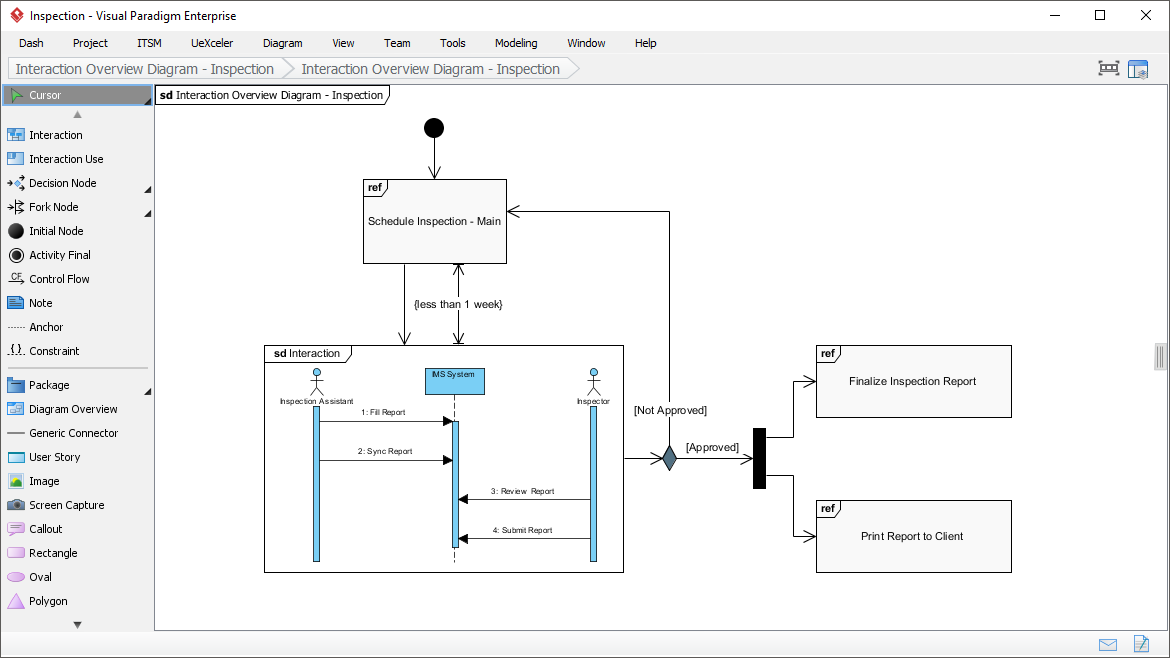
| See how you can make use of overview diagrams to present the relationships among diagrams in the project visually. |
|
|
| | | |
| |
|
Model sharing
|
|
Watch Demo »
|
|
| The model sharing feature enables the creation of multiple views on the same model, and you can reuse the same model in different types of diagrams. |
|
|
| | | |
| |
|
Mouse gestures
|
|
Watch Demo »
|
|
| Mouse Gesture offers you a natural way of diagramming as if you are using a pen and paper. There are three types of gestures. Create element gesture lets you create shapes in diagram. Connect element gesture connects shapes in diagram. Action gesture executes certain commands such as to layout a diagram. |
|
|
| | | |
| |
|
Group creation support
|
|
Watch Demo »
|
|
| You can group selected shapes so you can manipulate shapes easily, as if they are a single shape. |
|
|
| | | |
| |
|
Quick connect feature
|
|
Watch Demo »
|
|
| The quick connect feature enables you to create a connection from one shape to another with minimal effort. This makes it more convenient when connecting shapes in a large and complex diagram. |
|
|
| | | |
| |
|
Model commenting
|
|
Watch Demo »
|
|
| Comments can be added to models and diagrams by different members who work on the same project. The accumulated comments can thus be served as logs for changes over time. |
|
|
| | | |
| |
|
Diagram locking
|
|
Watch Demo »
|
|
| To prevent accidental modification, you can lock the diagram so that no changes can be made to the appearance of the diagram. |
|
|
| | | |
| |
|
Advanced tree support
|
|
Watch Demo »
|
|
| In VP-UML, the Diagram Navigator is highly-customizable so that you can change its view to manage diagrams in the most efficient way for you. Aside from this, the Model Tree also allows you to create any kind of model without the need to work with the diagram editor. |
|
|
| | | |
| |
|
Package headers for all types of diagrams
|
|
Watch Demo »
|
|
| The package header that exists in class diagrams now applies to all types of diagram. You can therefore specify the parent package of diagram more conveniently. |
|
|
| | | |
| |
|
Sub-diagrams and reference indicators
|
|
Watch Demo »
|
|
| You can select to always show sub-diagram and reference indicators around a shape so the related states can be known without the need to open its specification. |
|
|
| | | |
| |
|
Space reclamation using Sweeper
|
|
Watch Demo »
|
|
One of the benefits of diagramming in digital form is that you can change your mind at any time with very low cost.
Have you ever tried to insert something in the middle of your very complex and almost complete diagram? It is just a disaster.
With the Sweeper and Handi-Selection, you can reclaim and eliminate spaces in any part of your diagram. You simply need not to go through error prone and time-consuming shape-by-shape selection and editing. |
|
|
| | | |
| |
|
Create shapes with user-defined initial sizes
|
|
Watch Demo »
|
|
| Instead of creating shape with its default size, it is also possible to create shape with the initial size you specified. |
|
|
| | | |
| |
|
Auto-fit shape sizes
|
|
Watch Demo »
|
|
| See how you can take advantage of the auto fit shapes size feature to keep shapes always resized to fit. |
|
|
| | | |
| |
|
Spell checking
|
|
Watch Demo »
|
|
| The Spell Checking feature supports spell checking in all inline editing, as well as in Textual Analysis. It provides intelligent suggestions for words, and you can add your own words into your personal dictionary. |
|
|
| | | |
| |
|
Numerous grid options
|
|
Watch Demo »
|
|
| By configuring the grid options to the appropriate values, the efficiency and accuracy of diagram editing can be greatly enhanced. |
|
|
| | | |
| |
|
Jump to diagram feature
|
|
Watch Demo »
|
|
| Using the "jump to" facility, you can quickly locate a diagram by its name. This saves you time from searching through the Diagram Navigator. |
|
|
| | | |
| |
|
Open view from model element
|
|
Watch Demo »
|
|
| When the design grow bigger, you may want to review the diagram which contains a particular model to get better understanding for that model. In this demonstration, you'll see how to open a view from a model. |
|
|
| | | |
| |
|
Add folders as favorites
|
|
Watch Demo »
|
|
In order to increase the efficiency of modeling, we may have a specific folder in our machine to store relevant materials, such as documentations and projects, so that we can easily pick up what we need.
In consideration of this, we have enhanced all file/directory choosers in our tools to allow adding folders as favorite. |
|
|
| | | |
| |
|
Inverse shape selection
|
|
Watch Demo »
|
|
| Make a selection opposite to the current one. In other words, those non selected shapes will be selected. |
|
|
| | | |
| |
|
Automatic reroute connector when overlapped with other shapes
|
|
Watch Demo »
|
|
| Make it possible to reroute connector automatically when any shape is being moved over a connector. This avoid having complex diagram caused by overlapped connectors and shapes. |
|
|
| | | |
| |
|
Auto extend activation
|
|
Watch Demo »
|
|
| Automatically extend activation to link up continuous flow of sequence message within sequence diagram. |
|
|
|
|
| |
Layer support to show/hide set of shape with single click
|
|
Watch Demo »
|
|
| Layer can be added for separating annotation objects from normal modeling elements. By showing or hiding a layer, diagram with or without anotation can be produced. |
|
|
| | | |
| |
Align Connector Caption Base on Connector Orientation
|
|
Watch Demo »
|
|
| Visual Paradigm supports a number of ways of aligning connector caption, which suit different modeling preferences. |
|
|
| | | |
| |
|
Annotation with freehand shapes
|
|
Watch Demo »
|
|
| With the support of Freehand Shape in annotating models, the diagrams will be more understandable without word description. It increases the clearance of the organization of the diagrams as well. |
|
|
| | | |
| |
|
Bookmark support
|
|
Watch Demo »
|
|
| You can go to shapes or diagram easily by visiting bookmarks. This demonstration presents how to add bookmark to selected shapes. |
|
|
| | | |
| |
|
Customizable data types for use with multiple programming languages
|
|
Watch Demo »
|
|
| When creating a VP-UML project, you can specify its programming language. This determines the default set of data types that available. You can change the project language later, or even define a new programming language with the list of data types you specified. |
|
|
| | | |
| |
|
Resource-centric interface
|
|
Watch Demo »
|
|
| Visual Paradigm is the first vendor to introduce the Resource centric diagramming interface. Resource Centric Interface greatly improves the efficiency of modeling Modelers need not to go back and forth between tool bar and diagram for creating and modifying diagram. Resource Centric Interface can also ensure diagram to be created and in correct syntax all together. |
|
|
| | | |
| |
|
Copy diagrams as images for use in other applications
|
|
Watch Demo »
|
|
| VP-UML diagrams can be copied as images and pasted to other applications such as Microsoft Office. |
|
|
| | | |
| |
|
Reverse connector direction
|
|
Watch Demo »
|
|
| Reverse a connector easily with just a few clicks, without the risk of messing up the diagram. |
|
|
| | | |
| |
|
Jump to feature for selecting a particular shape or model
|
|
Watch Demo »
|
|
| Using the "jump to" facility, you can quickly locate a shape or model by its name, in either the active diagram or the entire project. |
|
|
| | | |
| |
|
Easy navigation to connected elements
|
|
Watch Demo »
|
|
| When a connector is so long that it spans multiple screens, it is hard to navigate to its connected shapes. The "scroll to" feature is provided to address this problem. |
|
|
| | | |
| |
|
Selectable/non-selectable toggling for shapes
|
|
Watch Demo »
|
|
| You can make certain shapes and connectors non-selectable so that they will not be moved accidentally. |
|
|
| | | |
| |
|
Reference to any type of artifact
|
|
Watch Demo »
|
|
| Although UML contains a rich notation set, sometimes it's still not enough to present the idea. In these cases, we may need to refer to other documents, websites, diagrams and shapes for annotation. This demonstration shows you how to add and navigate to related resources from a model. |
|
|
| | | |
| |
|
Duplicate, move and reconnect connectors
|
|
Watch Demo »
|
|
| VP-UML provides handy features for you to duplicate or reconnect connectors with minimal effort. |
|
|
| | | |
| |
|
Tagged value display toggling for diagram elements
|
|
Watch Demo »
|
|
| Tagged values of a model are not shown in the diagram by default. You will learn how to make tagged values visible in a diagram in this demonstration. |
|
|
| | | |
| |
|
Rectilinear, round rectilinear, oblique, round oblique and curve connector styles
|
|
Watch Demo »
|
|
| Learn how to apply different connector styles to connectors to suit diagrams of different natures. |
|
|
| | | |
| |
|
Space elimination using Magnet
|
|
Watch Demo »
|
|
| Reduce unnecessary space in diagram by using the magnet tool to attract shapes. This is particular effective when a large among of shapes are involved. |
|
|
| | | |
| |
|
Drag-and-drop creation of shapes using trees in diagrams
|
|
Watch Demo »
|
|
| VP-UML allows shapes to be created by drag and drop from tree to diagram. This enables the creation of multiple views on the same model, and you can reuse the same model in different types of diagrams. |
|
|
| | | |
| |
|
In-line editing
|
|
Watch Demo »
|
|
| Without needing to walk through complex dialog boxes, most diagram elements can be edited directly in the diagram in VP-UML for quicker and smoother operations. |
|
|
| | | |
| |
|
Visual alignment guides
|
|
Watch Demo »
|
|
| Visual alignment guide displays the edges of the closest neighbor of the dragging shape, which makes it easier to align shapes neatly early in the diagram creation stage. |
|
|
| | | |
| |
|
Diagram information display in diagrams
|
|
Watch Demo »
|
|
| See how you can make use of a Diagram Info Shape to display information about a diagram, such as the diagram name and documentation. |
|
|
| | | |
| |
|
Drag-and-drop copying, moving and reordering of classes and entity members
|
|
Watch Demo »
|
|
| When modeling, we often need to move or copy model members, such as attributes or operations for class model and columns for entity model, for the sake of sharing similar characteristics or behaviors among models. All these can be done by drag and drop. |
|
|
| | | |
| |
|
Diagram renaming boxes
|
|
Watch Demo »
|
|
| Diagrams are supposed to be named upon creation. Diagram name can be entered easily at the rename box which appear at the top of a diagram. You'll see how to name and rename a diagram with the rename box. |
|
|
| | | |
| |
|
Display Undo/Redo action names
|
|
Watch Demo »
|
|
| Actions' names are appended to the Undo and Redo menus, as well as the tooltips of Undo and Redo buttons in the toolbar. This makes it clearer for the action to be rollback or re-execute. |
|
|
| | | |
| |
|
Create new attribute with Enter key
|
|
Watch Demo »
|
|
| Create attributes effortlessly by pressing the Enter key. With this function, users do not need to switch between the keyboard and mouse again and again for creating attributes. |
|
|
| | | |
| |
|
Hide shapes or type of shapes on a diagram
|
|
Watch Demo »
|
|
| Enterprise applications development often requires to deal with complex diagrams which could sometime grow too large for manipulations. The Show and Hide Diagram Element feature allows you to show only those elements on the diagram pane which you are interested for performing some operations more conveniently in a temporary state and later you can make them visible again for the normal operations. |
|
|
| | | |
| |
|
Model name completion for class
|
|
Watch Demo »
|
|
| When creating or renaming a class, a popup list will appear, listing the existing classes in the model. You can reuse an existing class by selecting its name from the popup list. |
|
|
|