How to Create Project Reference in Visual Paradigm?
You are allowed to re-use model elements from dependent project in developing your current project. Moreover, this also helps you to optimize projects through breaking down a project into smaller pieces. Once the project reference being established, you can develop your model using model elements in referenced project. This tutorial takes Fruit Store project and a library project as an example to explain how does project referencing works.
Reusing a Class from Another Project
- Download the Library.vpp and then put it under your workspace folder. You can check your workspace folder path by selecting Help > Switch Workspace from the application toolbar.
- Create a new project with Visual Paradigm. Select Project > New from the application toolbar.
- In the New Project window, enter Fruit Store as the project name. Click the Create Blank Project button.

- Select Project > Referenced Project from the application toolbar.
- In the Manage Reference Project window, click the Add button and then select Library.vpp. Click the Close button.

- You can see the model elements in Library.vpp listed in the Model Explorer. On top of the element list, there is a drop-down menu for you to access the elements in different referenced projects. You will need it when your project is referencing multiple projects.

- Let's construct a simple class diagram for collection classes. Create a new class diagram first. You can create a class diagram by selecting Diagram > New from the application toolbar. Select Class Diagram and click Next. Then, click OK to confirm.

- Let's create a FruitCollection class which stores the fruit selections in the store. Let's start by reusing the Collection class in Library.vpp. Drag out the Collection class from Model Explorer and drop it on the diagram.

- To create a new class that implements the Collection interface, move the mouse pointer over the Collection class, press and drag on the Resource Catalog button.

- Release the mouse button and select Realization -> Class from the Resource Catalog.

- Name the class FruitCollection and press Enter.

- Add an operation to the FruitCollection class. Right-click on it and select Add > Operation from the pop-up menu.

-
Name the operation +containsApple():boolean, press Enter and Esc to confirm editing.
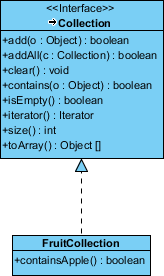
The first half of this tutorial is finished. The steps above demonstrate how reference project(s) work. Even if in the future there are other projects that require the modeling of collection classes, you can reuse the same library project as a referenced project. Moreover, when you have updated the reference project, for example, adding an operation to the Collection class in this case, the referencing project will be benefited as well. This time-saving feature would avoid you repeating the same change on different projects.
Accessing Diagrams in Referenced Project
- Select View > Project Browser from the application toolbar.
- Under the Diagram tab, click on the drop-down menu at the top left corner and then select the Library project.

- Double-click on the diagram Collection Framework to open it.

With this, you can read the diagram drawn in the referenced project.