Managing members
A member is someone who has sufficient right to be the server administrator and/or be a general team member who works on a project file. A member can be assigned to one or more projects, and can be granted the permissions to read and/or update them. Moreover, selected members can be granted permission to administer (add/edit/remove) members or projects, so that the members can have all or part of the powers of a Teamwork Server administrator.
Adding member
- Open a web browser.
- Visit and login VP Server.
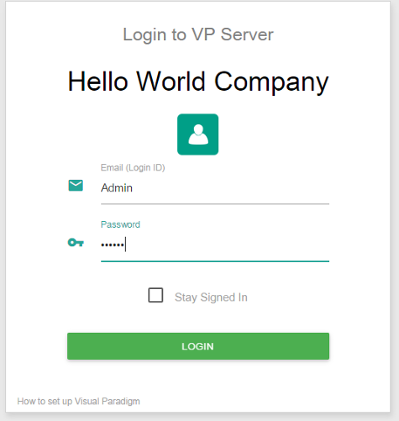
Logging into VP Server as administrator - At the top right, click on your profile logo image and select Admin Repository from the drop down menu.
- Select Members from the menu on the left hand side.
- Under the Members tab, click on New Member.
- Enter the name, email address and password of the member to add.
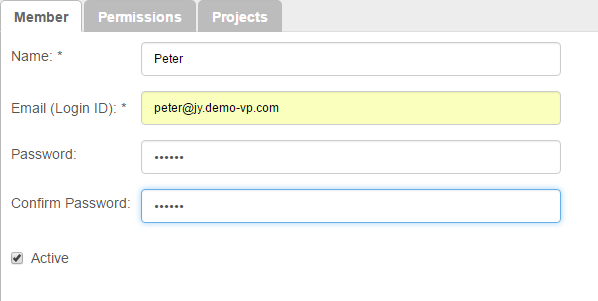
Entering member details
Option Description Name Name of member. It is used for display purpose within the administration tool. Email (Login ID) Email address of member. It is also the login ID member use to log into the server at client side. Password The password member need to log into his/her account. Confirm Password Re-enter the password for confirmation. Active Set if you want to reject the member from logging into the server. Very often you set it when the member is no longer with your team and is not expected to modify the project anymore. Options available when adding member - Switch to the Permissions tab. Grant him/her the administrator rights for creating/updating/deleting member and/or project. If you want to limit the member to perform certain action in Visual Paradigm, update the settings under the Access of features, Project configuration and Tag/Branch sections.
Option Description Repository The administrator right(s) of this member.
Create project - Project refers to a Visual Paradigm project that is available to be checked out by a member from client side. The create right enables this member to add a new project into the server. He/she can create project by creating a blank project, by importing an existing .vpp project file or by importing an opening project when creating project at client side.
Update project - Enables this member to modify the description, member assignments and granted permissions of projects.
Delete project - Enables this member to remove a project from server.
Create member - Member is someone who has sufficient right to be the server administrator and/or be a general team member who works on a project file. The create right enables this member to create members in server.
Update member - Enables this member to modify the name, login ID, password, administrator permissions and project assignments for all members in server.
Manage member groups - A group is a named group of members who who share the same read and/or commit rights of project(s). By enabling this option, the member will have the right to create/edit/remove group. Note that removing the group does not remove the member from server.Access of features The functions member can/cannot perform in Visual Paradigm.
Override the locks applied to elements and diagrams - When allowed, member can unlock a diagram locked by anyone, even for diagrams with password protected.
Project options - When allowed, member can modify the configurable options set to projects.
Add and remove referenced projects - When allowed, member can add and remove referenced projects.Project configuration The functions member can/cannot perform in Visual Paradigm.
Stereotypes (Project-based) - When allowed, member can add, edit and remove stereotypes in projects.
Default tagged values - When allowed, member can define default tagged values for any type of model elements.
Requirement types - When allowed, member can add, edit and remove requirement types.
Viewpoints - When checked, member can add, edit and remove viewpoints and stakeholders.
User story statuses - When allowed, member can add. edit and remove user story statuses.
Project management lookups - When allowed, member can modify the lookup values for project management properties (e.g. phase, iteration, version, etc).
Business rule keywords - When allowed, member can add, edit and remove business rule keywords.
Design pattern - When allowed, member can synchronize with server the local changes made to design patterns.
Doc. Composer element templates - When allowed, member can duplicate and edit Doc Composer element templates.
Task pool statuses - When allowed, member can configure task pool statuses in Tasifier.
Tag/Branch The functions member can/cannot perform in Visual Paradigm.
Create tag - When allowed, member can produce tags from teamwork project.
Create branch - When allowed, member can produce branches from teamwork project.
Merge branch - When allowed, member can merge changes made in branch to trunk, or the other way round.
Delete branch - When allowed, member can delete any branch.Options available when adding member - Click Save at the top right of page.
- If you have already added project, you can assign this member to project(s), too. Open the Projects tab. Click Add Project and press + on the project(s) that the member will involve. Click Close.
- Decide whether he can read and/or commit changes made in the project. Read access enables opening the project from server and reading its content. Commit enables uploading project changes from client to server. This step is optional and you can assign member to project in project management page later on.
Related Resources
The following resources may help you learn more about the topic discussed in this page.
| Chapter 3. Server administration | Table of Contents | 2. Managing members (LDAP) |
