Stopping server
When the Teamwork Server is stopped, client products can no longer perform all teamwork operations such as check out project, commit and update changes. Therefore, stopping of server must be done carefully.
Stopping of server involves two main parts. The first part is to let VP Server check if it is safe to perform a shut down and to shut down for you if alright. The second part is to stop the server program.
- Open a web browser.
- Visit the VP Server URL and login as administrator. Note that the login ID of the default server administrator is Admin.
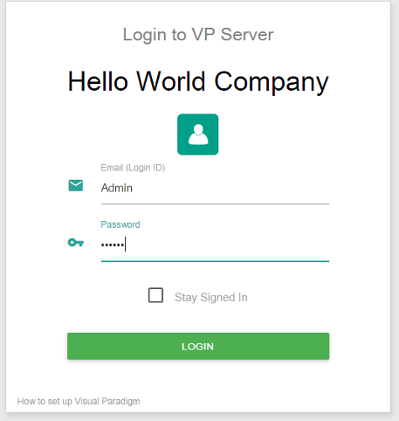
Logging into VP Server as administrator - Select Tools from the menu on the left hand side.
- Under the Miscellaneous section, click on the button Shutodnw Server.

Shutdown VP Server - Click Shutdown when you are prompted for confirmation. This will start the pre-shutdown procedures. It first checks if it is possible to perform a shut down. If someone is connecting to the server for performing tasks like commiting, shutdown will be rejected. If it is safe to shutdown, it will shutdown the server for you.
- Run shutdown.bat (shutdown.sh for Linux and Mac OS X) in the scripts folder under the VP Server server program directory to quit the process.
Related Resources
The following resources may help you learn more about the topic discussed in this page.
| 1. Starting server | Table of Contents | Chapter 5. Installing Windows service |
