Roll back past revisions changes
Visual Paradigm maintains the histories of changes team members made. If changes were made by mistake, you can undo it by performing a revert on the revision where the change was made in.
Select Team > Utilities > Open Teamwork Client... from the toolbar to open the Teamwork Client. In Teamwork Client, all your project's revisions are shown in Project revisions under Revisions tab. Select the number of project's revisions you want to list from the drop-down menu Show. Select the revision(s) that contain the unwanted changes and click Revert Revisions.
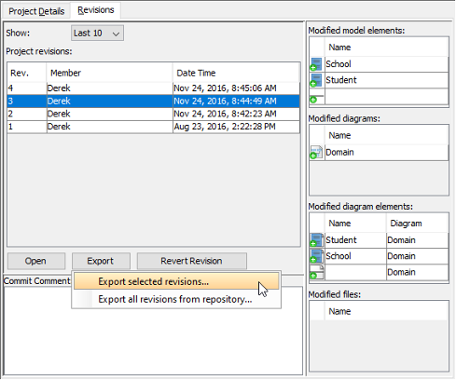 |
| Revert a revision |
A new revision will be created for the result of reverting. Therefore, you are asked to commit here. Sometimes, the undo action may cause a conflict with a more recent revision or revisions. Just like the normal commit process, you must resolve all the conflicts in order to continue committing. You have to resolve conflict either by overwriting or reverting the change. Overwrite means to adopt the server copy's change, while Revert means to adopt the local's change.
Related Resources
The following resources may help you to learn more about the topic discussed in this page.
| 6. Revert local modifications | Table of Contents | 8. Export revision |
