Stopping server
When VP Server is stopped, no more client products can be started due to the inability to connect to the server to acquire license key. For those running instances, the users will be prompted to import a valid license key, and be forced to terminate the application if they cannot get the license key ready. Therefore, stopping of server must be done carefully. Do not stop the server when there are running client instances.
Here are the steps for stopping server. The first few steps are for making sure that no clients are connected to the server. The final step is about stopping server.
- Open a web browser.
- Visit the VP Server URL and login as administrator. Note that the login ID of the default server administrator is Admin.
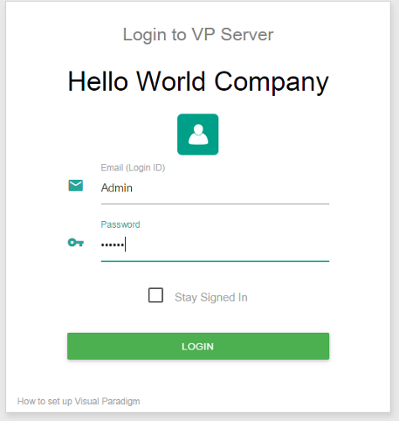
Logging into VP Server - Select Floating License from the menu on the left hand side.
- Check the table in the administrator page carefully. Make sure all the floating licenses are in available state, meaning that no active connection is made to the license(s). If you see the name of your teammate, ask that teammate to save his work and shutdown the client product.
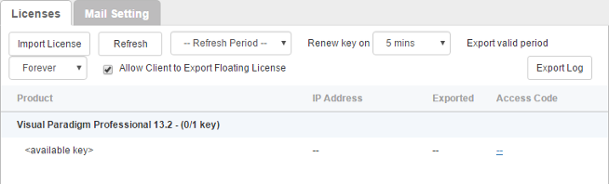
Making sure that those licenses are in available state - It is now safe to stop the server. Select Tools from the menu on the left hand side.
- Under the Miscellaneous section, click on the button Shutodnw Server.

Shutdown VP Server - Click Shutdown when you are prompted for confirmation. This will start the pre-shutdown procedures. It first checks if it is possible to perform a shut down. If someone is connecting to the server for performing tasks like commiting, shutdown will be rejected. If it is safe to shutdown, it will shutdown the server for you.
- Run shutdown.bat (shutdown.sh for Linux and Mac OS X) in the scripts folder under the VP Server server program directory to quit the process.
Related Resources
The following resources may help you learn more about the topic discussed in this page.
- Know-how - Use Access Code to Protect your Floating License from Unauthorized Access
- Contact us if you need any help or have any suggestion
| 1. Starting server | Table of Contents | Chapter 3. Installing service |
