Importing new version key
When you have purchased new license or when you have got a new license for a new version of product, you need to replace the existing one with the new one. This page shows you how to replace an existing license file.
- Open a web browser.
- Visit the VP Server URL and login as administrator. Note that the login ID of the default server administrator is Admin.
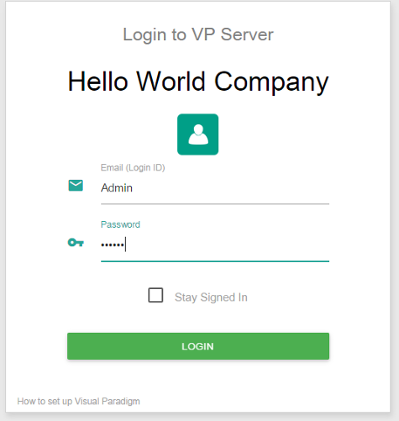
Logging into VP Server as administrator - Select Floating License from the menu on the left hand side.
- Click on Import License.

Import floating license - Click Choose File... and select the new floating license file to upload.
- Click Upload File. After that the page will be reloaded automatically. The new license(s) are now listed in the page.
Related Resources
The following resources may help you learn more about the topic discussed in this page.
- Know-how - Use Access Code to Protect your Floating License from Unauthorized Access
- Contact us if you need any help or have any suggestion
| Chapter 6. Importing new version key | Table of Contents | Part II. Client configuration |
