Managing Teamwork Files
When modeling, there may be external resources you want to attach to a model which help to describe it in detail or include data that cannot be modeled within the tool, like a text document. For example, you may want to attach a scanned image of a transaction receipt to a diagram that describes the transaction process so that the analyst can design the new system based on the image. Or maybe an image file showing the user's expectation of the user interface.
The reference function enables you to add file references to model elements and diagrams. You, as a user who work in a team-based environment with VPository/Teamwork Server do not need to copy any referenced files for other team members to open. Instead, you can commit your model along with the referenced files to the server by referencing a teamwork file. Teammates can then get the referenced files from server and open them in their environment.
In VP, there is a folder under the workspace for storing files that are readily being committed to VPository/Teamwork Server for versioning. Those files are called teamwork files. The file revision will follow the model, i.e. whenever you open a particular revision of work from server, the file of that revision will be obtained and thus there is always a consistency between the file and the design.
| NOTE: | "Teamwork Files" is supported by VPository and Teamwork Server Corporate Edition. |
Opening the Project Browser for Teamwork Files management
The Project Browser is where you can browse and manage the Teamwork Files. To open the Project Browser for the management of Teamwork Files:
- Select View > Project Browser from the toolbar or press Ctrl-Shift-B.

Opening Project Browser - Open the Files page.

Selecting the Files page
The folder structure is listed on the left hand side of the screen, while the files and sub-folders are listed on the right hand side.
Creating a folder
You can create a folder for managing files. To create a folder:
- Select the parent folder from the folder list on the left hand side. If you want to create a folder at root level, select the project node.
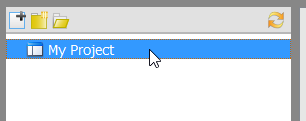
Select project root node - Click on the New Folder button on top of the folder list.
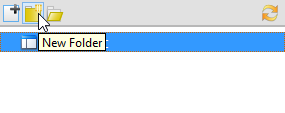
Create a folder - Enter the name of the new folder and click OK to confirm.
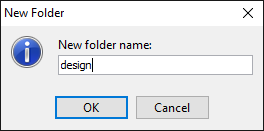
Entering folder name
A new folder is created under the selected node.
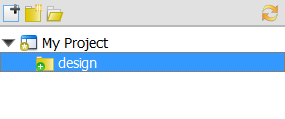
Teamwork folder created
Adding a teamwork file/folder
To add a teamwork file/folder is to copy an external file/folder into your project as a teamwork file (or folder).
- Select the parent folder from the folder list on the left hand side. If you want to add the teamwork file to root level, select the project node.
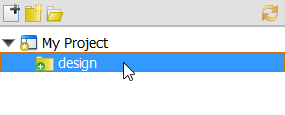
Selecting the parent folder - Click on the Add File/Folder button on top of the folder list.
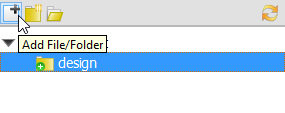
To add a teamwork file/folder - In the Add window, select the file or folder to add and click Open. You can select multiple files by pressing the Ctrl or Shift key. When finished, you can see the thumbnails of the selected files and folders listed on the right hand side of the Project Browser.
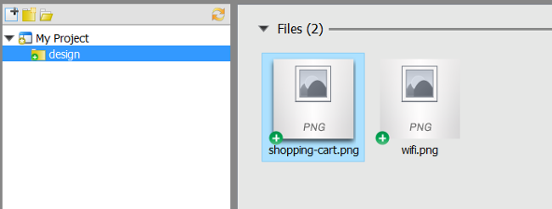
Files added
Opening a file
To open a file:
- In the folder list, navigate to the folder where the file is placed in.
- Select the folder.
- The thumbnail of the file you want to open is on the right hand side on the Project Browser. Double click to open it.
Opening the containing folder of file
You can open the containing folder of a teamwork file/folder so that you can access it with file explorer provided by the operating system. Right click on the file/folder and select Show in Folder from the popup menu.
Committing teamwork files
You may make use of the commit function to commit teamwork files to VPository/Teamwork Server. When you perform a commit globally (i.e. commit the whole project), teamwork files will get committed. If you want to perform commit on specific teamwork file/folder, right click on it and select Commit... from the popup menu.
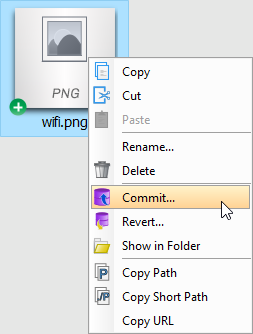 |
| Commit teamwork files to server |
Removing teamwork files
To remove a teamwork file from project, select the file/folder to remove and press Delete. Alternatively, right click on the file/folder and select Delete from the popup menu.
Revert changes
Revert is the process of discarding non-committed modifications. To revert a file/folder, right click on the file/folder and select Revert... from the popup menu. In the Revert window, select the files to revert.
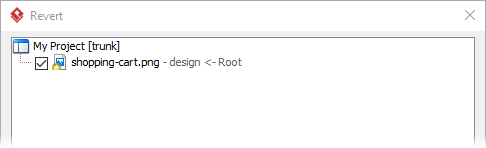 |
| Revert changes of teamwork files |
Copy, Paste and Cut
Copying, pasting and cutting of teamwork file can be done by two ways. One is by hotkey Ctrl-C, Ctrl-V and Ctrl-X. Another one is by right clicking on the file(s) and selecting Copy, Paste and Cut from the popup menu.
Referencing a teamwork file
When you try to add a file reference to a teamwork file, you may manually navigate through the folders to locate the teamwork file to add. Or to speed things up, Visual Paradigm allows you to create a shortcut that brings you to the folder where the teamwork files are stored. In order to have such shortcut, you need to define a user path of project files to create a corresponding shortcut in file chooser. After that, you may add the reference easily.
- Select Window > Application Options from the toolbar to open the Application Options window.
- In the Application Options window, select User Path on the left hand side.
- On the right hand side, click Add... and select Project Files Path from the popup menu.
- Click OK at the bottom of the Application Options window to close it.
- From now on, when you try to add file reference to model elements, you can select the shortcut Project Files Folder in file chooser to jump to the folder where the teamwork files are listed.
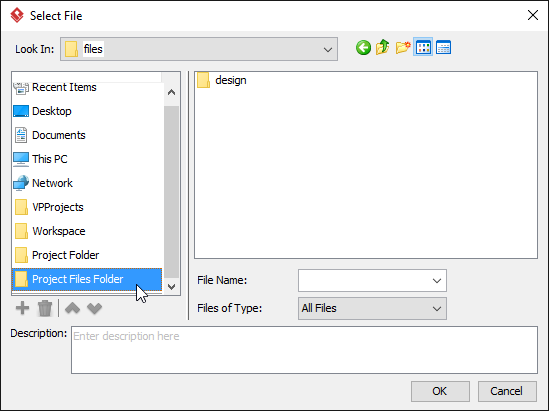
Project files folder
Copying the path of a teamwork file
Sometimes, you may want to save a new file to a teamwork folder. In order to do this, you have to know the filepath of the folder, which is what the Copy Path feature can help. There are two kinds of path you can copy - full path and short path. Full path is what known as an absolute path. You can save a file to a specific location by providing its full path. On the contrary, a short path is a relative path, which is relative from the project. A sample of short path would be MyProject\files\MyTWFile.txt. Compare to full path, short path is short and machine-independent, making it a good method to express a filepath within a team.
To copy the path of a teamwork file, right click on that file and then select Copy Path, Copy Short Path or Copy URL. The path will then be copied to the system clipboard automatically. Here is a description of copy features:
Copy Path - The absolute path of the file
Copy Short Path - The relative path of the file, relative to the root folder that stores the teamwork file
Copy URL - The URL of file. Team members who can access the project can visit the URL directly in their web browser for accessing or downloading the file.
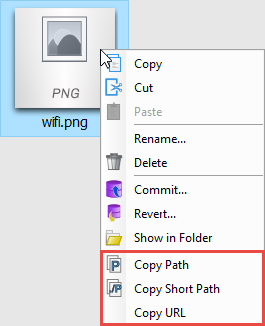 |
| The Copy menus |
| 8. Export revision | Table of Contents | 10. Synchronizing design patterns |
