How to Draw Wireframe for Android Apps?
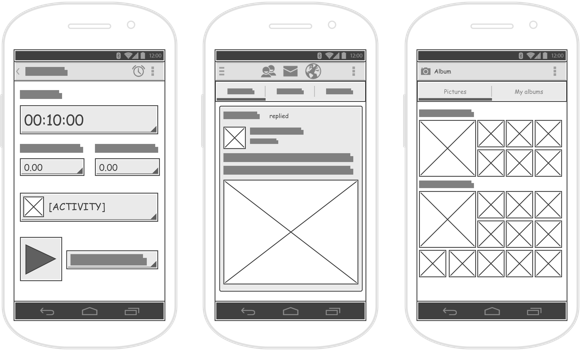
A wireframe serves as a fundamental sketch or blueprint of an application, website, or system you intend to build. Distinct from other screen design or mock-up techniques, wireframes typically use simple placeholders, boxes, and lines in black and white. Their purpose is not to focus on intricate visual details, but rather to provide a clear, general overview of the final product's structure, screen flow, and element layout.
What is an Android Wireframe?
Android wireframes are a specialized type of wireframe used for designing mobile applications on the Android operating system. Wireframes serve as the foundation for the visual design of your mobile application, serving as a blueprint for the app's layout and user interface.
One of the key advantages of using wireframes is that they are simple and easy to understand, even for those without a technical background. This makes them an ideal tool for inclusion in business requirements documents, helping clients or stakeholders visualize the final product and provide valuable feedback.
What This Tutorial Covers
This Android wireframe tutorial demonstrates the use of wireframe tools for creating effective Android wireframes.
To illustrate the concepts, we'll use the Google Play Store on your mobile phone as our example. You will create a wireframe for the Google Play Store.
Preparation
To complete this tutorial, ensure you have Visual Paradigm downloaded and installed. If you do not have it installed, click here to download Visual Paradigm.
Part I - Creating an Android Wireframe
- Create a new project by selecting Project > New from the application toolbar. In the New Project window, enter Tutorial as the project name and click Create Blank Project.
- Select Diagram > New from the application toolbar.
- In the New Diagram window, select Android Phone Wireframe and click Next.

- Enter Google Play Store as the name for the wireframe (diagram) and click OK. This creates a blank Android Phone wireframe.

Part II - Drawing an Android Wireframe
In this section, you will draw the content for your Android wireframe using the Android wireframe tools.
- First, let's display the action bar. Right-click at the top of the phone and select Action Bar > Show from the pop-up menu.

- This displays the action bar at the top of the phone. On the left side of the bar, there is a back button. Let's change it to a Drawer button. Right-click on it and select Android... from the pop-up menu.

- In the pop-up window, scroll down and choose the Drawer icon (the second-to-last icon). Click OK.

- There should be an icon for the Play Store next to the drawer icon. Let's add a placeholder for this icon. Select Image from the diagram toolbar.

- Click next to the drawer icon to create the image placeholder.

- Make it smaller by dragging its resize handle at the bottom-right.

- Release the mouse button once the image placeholder fits into the action bar.

Adjust the position of the image placeholder by dragging it. When you drag, a dotted alignment guide will appear. This guide helps you reposition the dragged content adjacent to another shape.

Wireframes are simple. They contain little to no details about graphical and text content. You do not need to show the actual graphical content of the Play Store icon (unless it has significant functional importance).
- Next to the icon, there should be a caption 'Play Store'. Create a label for it. Instead of using the diagram toolbar, let's try something different. Click once next to the image shape you just created. This will reveal a green icon, known as the smart resource.

- Click and hold the smart resource. Drag toward the bottom-right to form the label shape.

- Release the mouse button. A button should be created for you. Change it to a label by selecting More > Label from the drop-down menu.

- This creates a 'gray shadow' as a placeholder for the label. Double-click on it.

- Enter 'Play Store' as the caption and press Ctrl-Enter to confirm editing.

- On the right side of the action bar, there should be a search button, represented by a magnifying glass icon. Let's replace the original Overflow icon with a magnifying glass. Right-click on the icon and select Android... from the pop-up menu.

- Choose the Search icon and click OK to confirm.

- Resize the icon to fit within the action bar. At this point, the action bar should look like this:

- Let's proceed with drawing the main content area. At the top of the screen, there should be six buttons: Apps, Games, Movies & TV, Music, Books, and Magazines. Let's create a button for each. Select Button from the diagram toolbar.

- Click on the top-left of the phone to create a button.

- Resize it to approximately half of the screen width. You can resize it by dragging the resize handle.

- Double-click on the button and rename it to Apps.

- There should be an icon on the left side of the button. Apply the techniques described in steps 4 to 7 to create an image inside the button.

- There are six buttons in total. Instead of creating them one by one, you can utilize the Duplicate function to make copies of the Apps button. Click on the Apps button to select it.

- The Duplicate resource icon is shown below the selection. Click and hold the mouse button on it, then drag it to the right side.

- Release the mouse button. This creates a new button that is identical to the source.

- Rename Apps to Games.
- Let's create the other buttons. Select the two buttons first. You can select a range of shapes by clicking on the background and dragging over the target shapes.

- Duplicate them to produce two new buttons.

- Repeat these steps to create all six buttons.

- Let's create a New Movie Releases section below the buttons. Add a label below the buttons. Double-click and set its caption to New Movie Releases.

- Let's make the text larger. Click to select the label. Click on the Font Size resource and drag the slider to increase the font size.

- Add a See More button on the right side. Resize it to make it smaller.

- This section should feature three "recommended picks" columns. Let's create the first item. Create a panel for a column. Again, select Panel from the diagram toolbar and then click on the wireframe to create it.

- The upper part of the panel should contain a preview image. Add an image shape within it.

- Below the image, there should be the name of the item, along with a short description. Represent this with two labels.

- On the right side, there should be an Overflow icon and price information. Represent this with an image shape and a label.

- Utilize the Duplicate function to create two more panels.

- Let's create the Recommended for You section by duplicating the New Movie Releases section. Select the related wireframe elements and duplicate them.

- Release the mouse button and rename New Movie Releases to Recommended for You.

- There should be only two columns under this section. So let's delete the third panel, then resize the remaining two elements to appear as follows:

That completes the wireframe drawing. Your final result should resemble this:

Part III - Exporting the Android Wireframe to an Image File
You can now export your work to an image file. To export the image:
- Select File > Export > Active Diagram as Image... from the main menu.
- In the Save window, adjust the save options, such as the file type and output quality.
- Click Save. You will now obtain an image file for your Android wireframe!

Trademark Disclaimer
Android, Google Play Store are registered trademarks of Google, Inc.