How to Animate a UML Sequence Diagram?
Animation is a tool to help you make an interaction active by presenting the flow in animation form. This enables you to analyze your design easier, especially for a complex design. Besides, you can control the flow of animation yourself to help demonstrating your work to client with your annotation. In this tutorial, you will try to animate a simple UML sequence diagram about a login process.
- Download Login.vpp. You can also find this file at the bottom of this tutorial.
- Open the downloaded .vpp file in Visual Paradigm. To open a project, select Project > Open from the application toolbar.
- Open the UML sequence diagram.
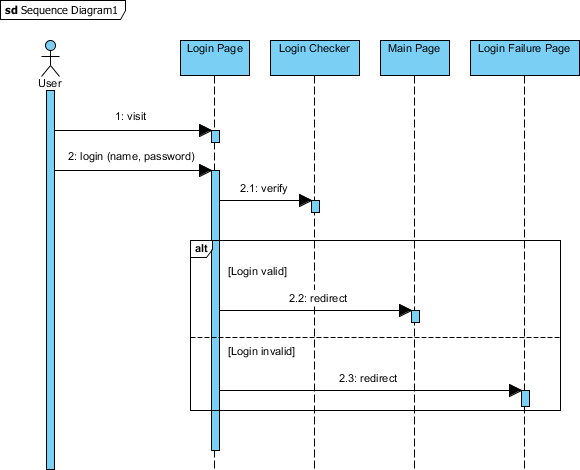
- Study the diagram, which models a simple login process.
- Select Modeling > Animation from the application toolbar.

-
On the left-hand side of the Animation window, two paths are listed. They refer to the possible execution paths you can find on the UML sequence diagram.

Move the Animation window so that the sequence diagram in the background is not covered. Select Path1 and observe the highlighted path on the diagram. Then, select Path2. You can see that Path1 refers to the path for a valid login, while Path2 refers to an invalid login.
- Select Path1 and click the Play button.

- Watch the animation on the diagram. A tiny black ball will walk through the chosen path.

- Click the Show Dialog button at the bottom-right corner.

- Now, let's export the paths to an Adobe Flash movie. Before doing this, rename the paths for better understanding. Double-click on Path1 and rename it to Login valid. Rename Path2 to Login invalid.

- Check the paths and click Export to Flash... at the bottom-left corner.

- In the Export to Flash dialog box, specify an output path and click Export. Watch the exported animation in a Web browser.
