Introduction
In modern software development and product management, a persistent challenge exists: the gap between visual design and living documentation. Traditionally, this process is fraught with friction. Architects draw diagrams in specialized tools, take screenshots, paste them into Word documents or Wikis, and then forget to update them when the code changes. The result? "Documentation debt"—outdated, misleading assets that erode team trust and slow down onboarding.
The Visual Paradigm Pipeline solves this by acting as a secure, cloud-based "connective tissue." It bridges dynamic visual modeling with AI-powered documentation (OpenDocs), eliminating manual handoffs. For Product Managers, Engineers, and Technical Writers, this means a single source of truth where diagrams are not just static images, but live, version-controlled assets that sync automatically across your workspace.
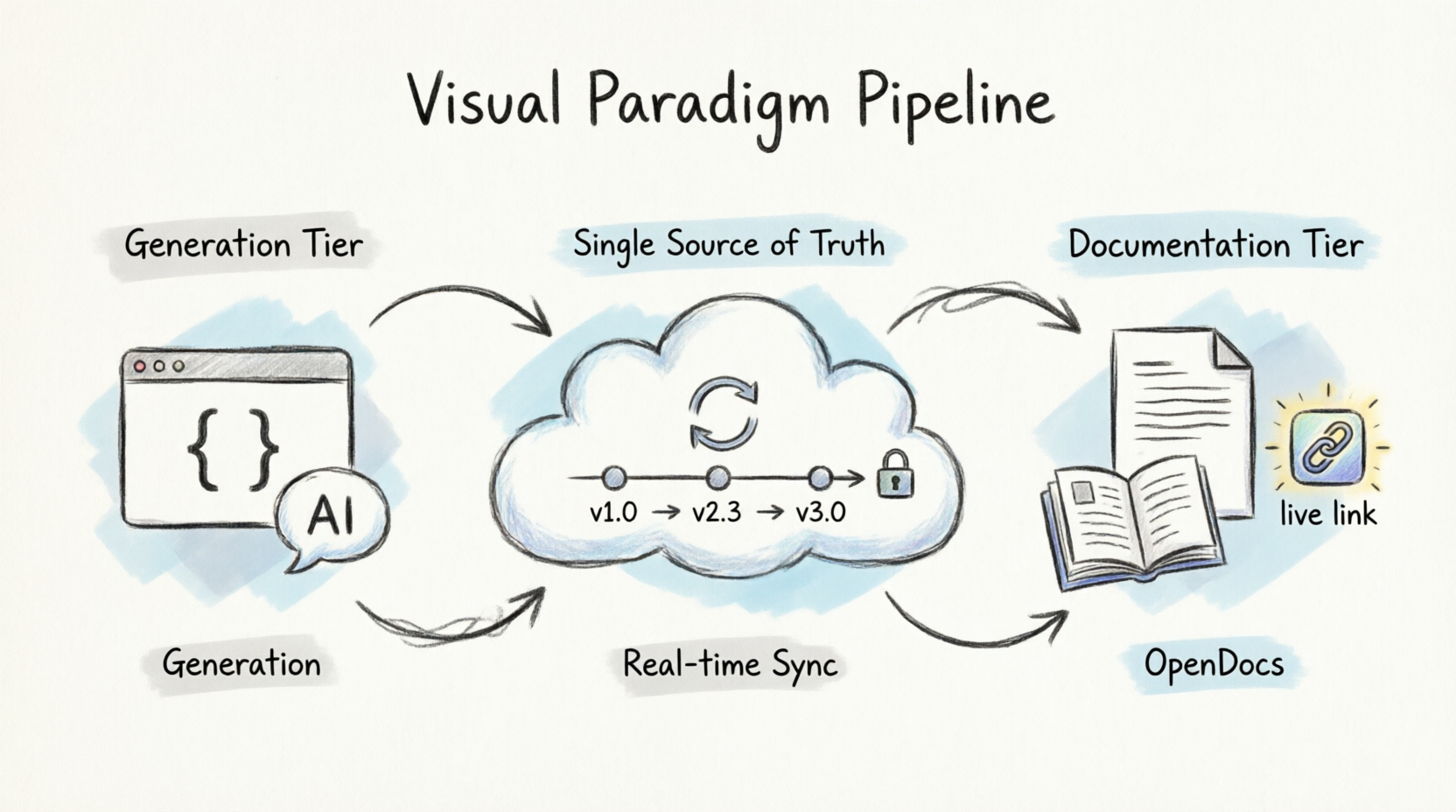
This guide will walk you through setting up this ecosystem, using realistic examples like PlantUML sequence diagrams, and leveraging Visual Paradigm’s AI features to streamline your workflow from concept to knowledge base.
🔄 The Three-Tier Ecosystem
To understand the Pipeline, visualize it as a central nervous system connecting three distinct layers:
- The Generation Tier: Where raw diagrams are created. This includes:
- Visual Paradigm Desktop: For complex, enterprise-grade modeling.
- Visual Paradigm Online: For collaborative, browser-based diagramming.
- Visual Paradigm's VPasCode: A code-first approach for developers who prefer typing over dragging.
- AI Chatbot: Generate diagrams instantly via natural language prompts.
- The Pipeline (Transit Tier): The secure cloud repository. It accepts artifacts, logs comments, manages revision history, and serves as the bridge between creation and consumption.
- The Documentation Tier (OpenDocs): An AI-powered workspace where teams build comprehensive manuals. Here, visual assets are embedded directly from the Pipeline, ensuring they are always up-to-date.
🛠️ Step-by-Step Tutorial: Setting Up Your Workflow
Step 1: Create Your First Asset in the Generation Tier
Let’s start with a realistic example: documenting a user login flow. We’ll use VPasCode because it allows us to define the diagram using standard PlantUML syntax, which is easy to version control in Git.
Example: PlantUML Sequence Diagram for User Login
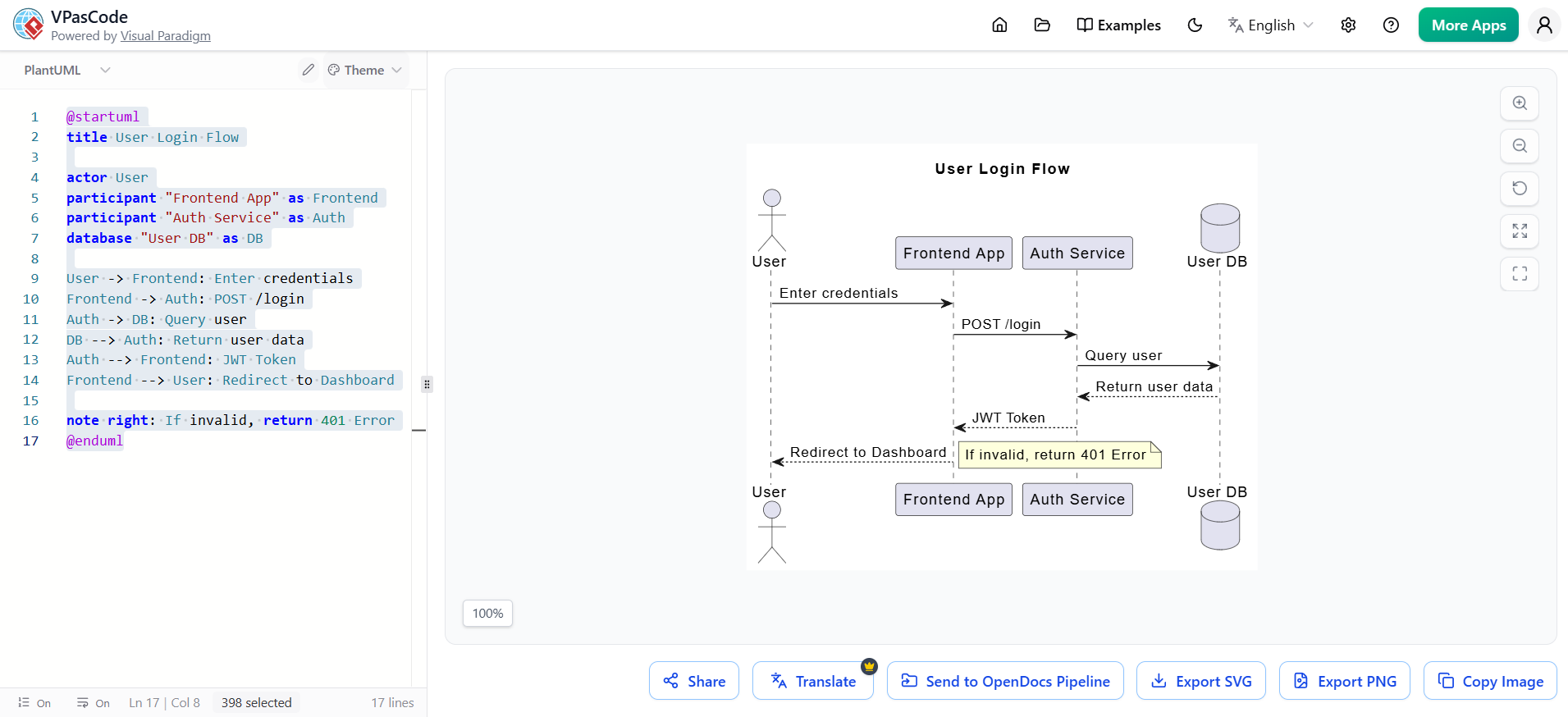
@startuml
title User Login Flow

actor User
participant "Frontend App" as Frontend
participant "Auth Service" as Auth
database "User DB" as DB

User -> Frontend: Enter credentials
Frontend -> Auth: POST /login
Auth -> DB: Query user
DB --> Auth: Return user data
Auth --> Frontend: JWT Token
Frontend --> User: Redirect to Dashboard

note right: If invalid, return 401 Error
@enduml
How to do it:
-
- Open VPasCode or the Visual Paradigm AI Chatbot.
- Paste the code above, or prompt the AI: "Create a sequence diagram for a user login flow involving a frontend, auth service, and database."
- Save/Commit the diagram. This action pushes the artifact into the Pipeline
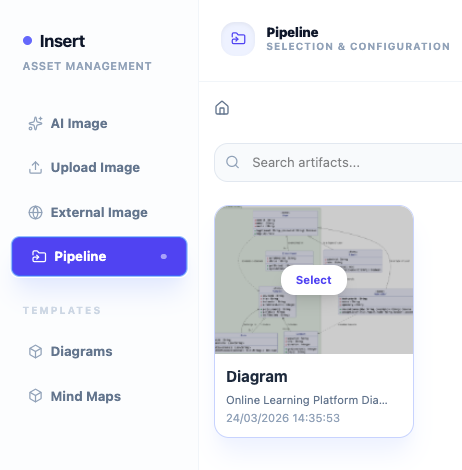
Pro Tip: If you’re using Visual Paradigm Desktop, you can export your diagram directly to the Pipeline via the "Share to Pipeline" option in the toolbar.
Step 2: The Pipeline Takes Over (Transit Tier)
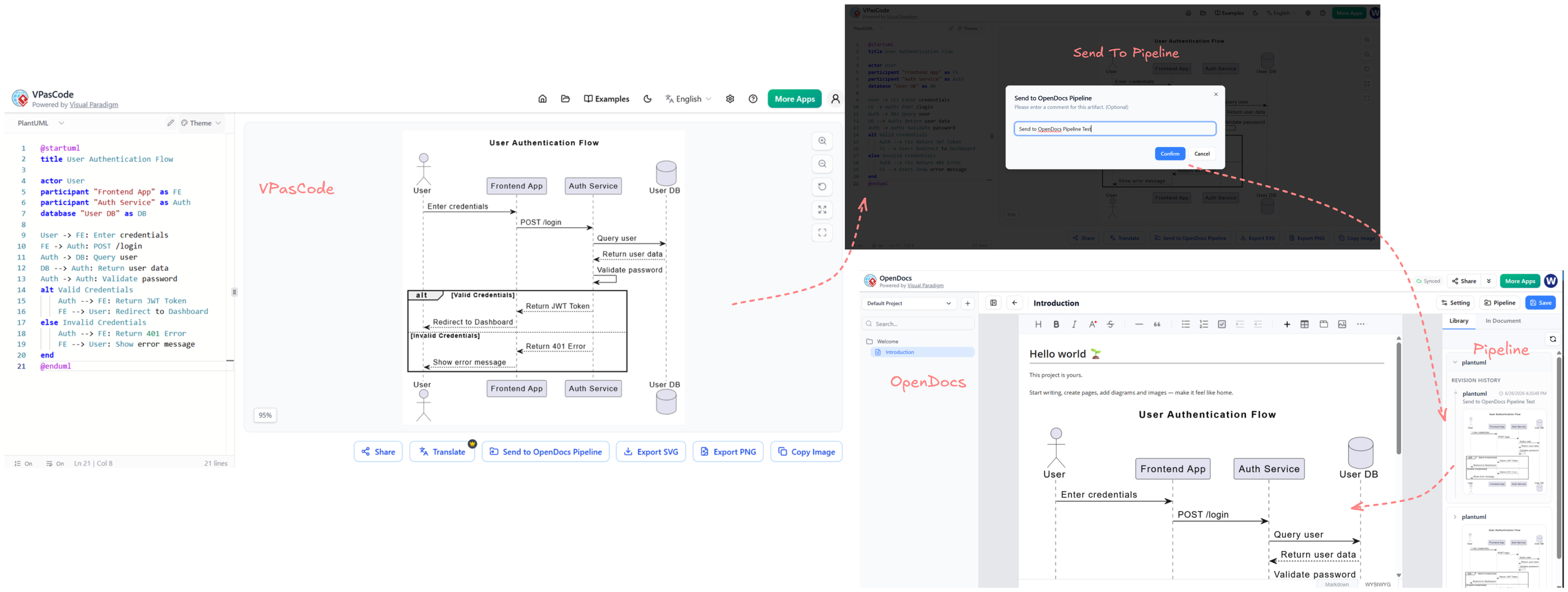
Once saved, the Pipeline automatically:
- Stores the diagram as a reusable asset.
- Generates a unique ID for embedding.
- Logs the initial version in its revision history.
- Makes it accessible to all authorized team members in your organization.
You don’t need to download PNGs or manage file paths. The Pipeline handles the storage and versioning securely in the cloud.
Step 3: Embed Live Assets in OpenDocs (Documentation Tier)
Now, let’s create the documentation that explains this login flow.
- Open OpenDocs.
- Create a new document titled "Authentication Module Specification."
- In the editor, type
/diagram or click the Insert Visual Asset button.
- Search for your "User Login Flow" diagram from the Pipeline.
- Select it. The diagram appears in your document not as a static image, but as a live embed.
Step 4: Experience Bidirectional Sync
Here is where the magic happens. Suppose the engineering team decides to add a Multi-Factor Authentication (MFA) step.
- Go back to VPasCode or Desktop.
- Update the PlantUML code to include an MFA service:
- Save/Commit the change.
participant "MFA Service" as MFA
Auth -> MFA: Send OTP
MFA --> Auth: Verify OTP
Transform Text into Diagrams with Visual Paradigm VPasCode
Looking for a powerful, free diagram-as-code tool? Effortlessly render PlantUML, Mermaid, Graphviz, and 20+ programming languages in real time—powered by instant AI error fixing and automatic format detection.
What happens next?
- The Pipeline detects the new version.
- In OpenDocs, a small update indicator (usually a blue dot or icon) appears next to the embedded diagram.
- Click the indicator. You have two choices:
- Update to Latest: Instantly refreshes the diagram in your document.
- View History: See previous versions or roll back if needed.
No screenshots. No re-uploads. No broken links.
💡 Realistic Use Cases & Examples
Example 1: Product Roadmap Alignment
- Generation Tier: Use Visual Paradigm Online to create a Gantt chart or timeline for Q3 features.
- Pipeline: Stores the roadmap.
- Documentation Tier: Embed the roadmap in your Product Requirements Document (PRD) in OpenDocs. When stakeholders request changes, update the chart in VP Online, and the PRD updates automatically.
Example 2: Microservices Architecture
- Generation Tier: Use the AI Chatbot to generate a C4 Context Diagram for a new microservice. Prompt: "Draw a C4 context diagram for a Payment Service interacting with Stripe and a Order Service."
- Pipeline: Captures the AI-generated diagram.
- Documentation Tier: Include it in the System Architecture Guide. As services evolve, regenerate the diagram via AI or manually edit it, and keep the docs in sync.
Example 3: API Documentation
- Generation Tier: Use VPasCode to create sequence diagrams for key API endpoints (e.g.,
POST /orders).
- Pipeline: Manages versions of each endpoint’s flow.
- Documentation Tier: Build an API Reference Manual in OpenDocs. Each endpoint section has its live sequence diagram. Developers always see the current logic, reducing support tickets.
🌟 Key Strategic Benefits
- Single Source of Truth: Engineering, architecture, and business teams work from identical, accurate data. No more "which version is correct?" debates.
- Elimination of Documentation Debt: Replace static, outdated images with dynamic embeddings. Your docs stay alive as your product evolves.
- Automated Version Tracking: The Pipeline handles revision history automatically. Every save creates a new checkpoint without manual file management.
- Cross-Tool Interoperability: Whether you start in Desktop, Online, VPasCode, or AI, the output flows seamlessly into the same Pipeline and OpenDocs workspace.
- Time Savings: Eliminate hours spent on screenshotting, cropping, uploading, and fixing broken links. Focus on content, not formatting.
Conclusion
The Visual Paradigm Pipeline transforms documentation from a chore into a seamless extension of your design process. By bridging the gap between dynamic visual modeling and living documentation, it ensures that your team’s knowledge base is always accurate, accessible, and aligned with reality.
For Product Managers like yourself, this means less time chasing down updated diagrams and more time focusing on strategy and user value. For engineers and technical writers, it means freedom from the tedious cycle of manual updates.
Start small: pick one critical diagram in your current project, push it to the Pipeline, and embed it in OpenDocs. Experience the sync firsthand, and you’ll never want to go back to static screenshots again.


