Introduction
If you're new to software testing or product management, the journey from understanding what a system should do (use cases) to verifying it actually does it (test cases) can seem confusing. This guide will walk you through the entire process step-by-step, using simple language and practical examples.
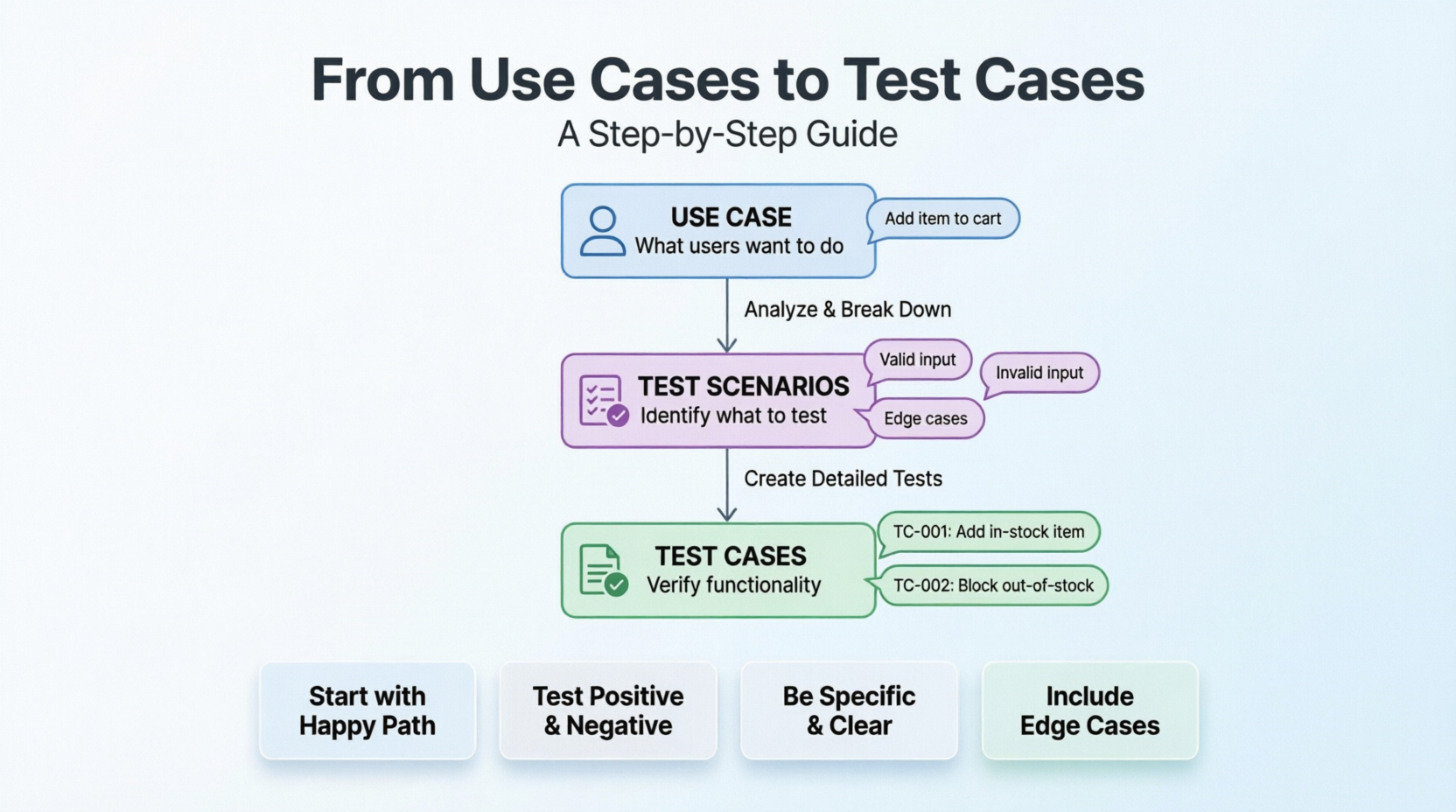
Part 1: Understanding the Basics
What is a Use Case?
A use case describes how a user interacts with a system to achieve a specific goal. Think of it as a story about someone using your product.
Simple analogy: If your product is a coffee machine, a use case might be "Making a cup of espresso."
What is a Test Case?
A test case is a set of conditions or variables used to determine whether a feature works correctly. It's like a recipe for checking if something works.
Simple analogy: For the coffee machine, a test case might be "Press the espresso button and verify that hot coffee comes out within 30 seconds."
Why Do We Need Both?
- Use cases help us understand what the system should do from the user's perspective
- Test cases help us verify that the system actually does it correctly
Part 2: The Step-by-Step Process
Step 1: Identify Actors and Goals
Actors are the people (or systems) who interact with your product.
Example: Online Shopping Website
Actors:
- Customer (shops for items)
- Admin (manages products)
- Payment System (processes payments)
Goals for Customer:
- Browse products
- Add items to cart
- Complete purchase
- Track order
Use Case Diagram
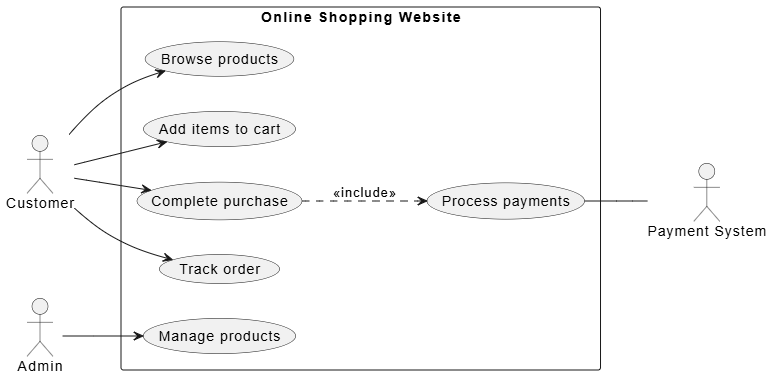
PlantUML Code:
@startuml
left to right direction

actor Customer
actor Admin
actor "Payment System" as PaymentSystem

rectangle "Online Shopping Website" {
usecase "Browse products" as UC1
usecase "Add items to cart" as UC2
usecase "Complete purchase" as UC3
usecase "Track order" as UC4
usecase "Manage products" as UC5
usecase "Process payments" as UC6
}

Customer --> UC1
Customer --> UC2
Customer --> UC3
Customer --> UC4

Admin --> UC5

UC3 ..> UC6 : <<include>>
UC6 -- PaymentSystem

@enduml
Step 2: Write Use Case Description
A good use case includes:
- Title – Clear name for the use case
- Actor – Who is performing the action
- Preconditions – What must be true before starting
- Main Flow – The happy path (everything goes right)
- Alternative Flows – What happens when things go differently
- Postconditions – What is true after completion
Example Use Case: "Add Item to Shopping Cart"
Title: Add Item to Shopping Cart
Actor: Customer
Preconditions:
- Customer is logged in
- Product is available in inventory
Main Flow:
- Customer browses product catalog
- Customer clicks on a product to view details
- Customer selects quantity
- Customer clicks "Add to Cart" button
- System confirms item added to cart
- Cart icon updates with new item count
Alternative Flows:
- 3a. Product out of stock: System displays "Out of Stock" message and disables "Add to Cart" button
- 4a. Invalid quantity entered: System shows error message "Please enter a valid quantity"
Postconditions:
- Item appears in customer's shopping cart
- Cart total is updated
Step 3: Identify Test Scenarios from Use Cases
Look at each step in your use case and ask: "What could go wrong here?" and "What needs to be verified?"
From our "Add Item to Shopping Cart" use case, we can identify these test scenarios:
- Successfully add an in-stock item to cart
- Try to add an out-of-stock item
- Enter invalid quantity (negative number, zero, text)
- Add multiple quantities of the same item
- Verify cart updates correctly after adding item
Step 4: Write Test Cases
A test case includes:
- Test Case ID – Unique identifier
- Test Case Title – Brief description
- Preconditions – Setup needed before testing
- Test Steps – Detailed actions to perform
- Test Data – Specific values to use
- Expected Result – What should happen
- Actual Result – What actually happened (filled during testing)
- Status – Pass/Fail
Example Test Cases:
Test Case 1: Successfully Add In-Stock Item to Cart
| Field |
Value |
| Test Case ID |
TC-001 |
| Title |
Verify customer can add in-stock item to cart |
| Preconditions |
1. User is logged in
2. Product "Wireless Headphones" is in stock (quantity > 0) |
| Test Steps |
1. Navigate to product catalog
2. Click on "Wireless Headphones"
3. Select quantity: 1
4. Click "Add to Cart" button |
| Test Data |
Product: Wireless Headphones, Quantity: 1 |
| Expected Result |
1. Success message "Item added to cart" appears
2. Cart icon shows "1" item
3. Item appears in cart page with correct price |
| Actual Result |
(To be filled during testing) |
| Status |
(Pass/Fail) |
Test Case 2: Attempt to Add Out-of-Stock Item
| Field |
Value |
| Test Case ID |
TC-002 |
| Title |
Verify system prevents adding out-of-stock items |
| Preconditions |
1. User is logged in
2. Product "Vintage Camera" has 0 stock |
| Test Steps |
1. Navigate to product catalog
2. Click on "Vintage Camera"
3. Observe the "Add to Cart" button |
| Test Data |
Product: Vintage Camera (stock = 0) |
| Expected Result |
1. "Add to Cart" button is disabled OR shows "Out of Stock"
2. Message "This item is currently out of stock" is displayed |
| Actual Result |
(To be filled during testing) |
| Status |
(Pass/Fail) |
Test Case 3: Enter Invalid Quantity
| Field |
Value |
| Test Case ID |
TC-003 |
| Title |
Verify system rejects invalid quantity input |
| Preconditions |
1. User is logged in
2. Product "Coffee Mug" is in stock |
| Test Steps |
1. Navigate to "Coffee Mug" product page
2. Enter "-1" in quantity field
3. Click "Add to Cart"
4. Repeat steps 2-3 with quantity "0"
5. Repeat steps 2-3 with quantity "abc" |
| Test Data |
Product: Coffee Mug, Quantities: -1, 0, "abc" |
| Expected Result |
1. Error message "Please enter a valid quantity (1-99)" appears
2. Item is NOT added to cart
3. User remains on product page |
| Actual Result |
(To be filled during testing) |
| Status |
(Pass/Fail) |
Step 5: Organize and Prioritize Test Cases
Not all test cases are equally important. Prioritize them:
- Critical: Core functionality that must work (e.g., completing a purchase)
- High: Important features with many users (e.g., adding items to cart)
- Medium: Less frequently used features (e.g., writing product reviews)
- Low: Edge cases or nice-to-have features (e.g., changing profile picture)
Part 3: More Examples for Different Scenarios
Example 2: Login Feature
Use Case: User Login
Title: User Login
Actor: Registered User
Preconditions: User has registered account
Main Flow:
- User navigates to login page
- User enters email address
- User enters password
- User clicks "Login" button
- System validates credentials
- System redirects user to dashboard
Alternative Flows:
- 5a. Invalid email format: System shows "Please enter a valid email"
- 5b. Incorrect password: System shows "Invalid email or password"
- 5c. Account locked: System shows "Account locked. Contact support"
Test Cases Derived:
TC-L001: Successful Login with Valid Credentials
- Enter valid email and password
- Expected: Redirected to dashboard
TC-L002: Login with Invalid Email Format
- Enter "notanemail" as email
- Expected: Error message about invalid email format
TC-L003: Login with Wrong Password
- Enter valid email but wrong password
- Expected: "Invalid email or password" message (don't reveal which one is wrong for security)
TC-L004: Login with Empty Fields
- Leave email and/or password blank
- Expected: Error messages for required fields
TC-L005: Login After Multiple Failed Attempts
- Enter wrong password 5 times
- Expected: Account temporarily locked with appropriate message
Example 3: File Upload Feature
Use Case: Upload Profile Picture
Title: Upload Profile Picture
Actor: Registered User
Preconditions: User is logged in
Main Flow:
- User navigates to profile settings
- User clicks "Upload Photo" button
- User selects image file from device
- System validates file (size, format)
- System uploads and processes image
- System displays preview
- User confirms upload
- System saves new profile picture
Alternative Flows:
- 4a. File too large (>5MB): System shows "File too large. Maximum size is 5MB"
- 4b. Invalid file format: System shows "Only JPG, PNG files are accepted"
- 5a. Upload fails: System shows error and allows retry
Test Cases Derived:
TC-U001: Upload Valid JPG Image (Under 5MB)
- Upload a 2MB JPG file
- Expected: Image uploads successfully and displays in preview
TC-U002: Upload File Exceeding Size Limit
- Upload a 6MB image file
- Expected: Error message about file size limit
TC-U003: Upload Unsupported File Format
- Upload a PDF or GIF file
- Expected: Error message about accepted formats
TC-U004: Cancel Upload Mid-Process
- Start upload, then click cancel
- Expected: Upload stops, no changes to profile picture
TC-U005: Upload Very Small Image
- Upload a 10KB image
- Expected: System either accepts it or shows minimum size requirement
Part 4: Best Practices for Beginners
✅ DO:
- Start with the happy path first – Test the main flow before edge cases
- Be specific – Don't say "enter data," say "enter '[email protected]' in email field"
- Make test cases independent – Each test should work on its own
- Include both positive and negative tests – Test what should work AND what shouldn't
- Use clear, simple language – Anyone should be able to execute your test
- Keep test cases updated – When features change, update tests
❌ DON'T:
- Don't combine multiple scenarios in one test – Keep each test focused
- Don't assume knowledge – Explain steps clearly
- Don't skip preconditions – They're crucial for reproducibility
- Don't forget edge cases – Test boundaries (empty, maximum, minimum values)
- Don't write tests without understanding requirements – Know WHAT you're testing and WHY
Part 5: Common Mistakes to Avoid
Mistake 1: Vague Expected Results
Bad: "System should work correctly"
Good: "Success message 'Order placed successfully' appears and order confirmation email is sent"
Mistake 2: Missing Negative Tests
Only testing what should work misses half the picture. Always test:
- Invalid inputs
- Missing data
- Boundary conditions
- Error handling
Mistake 3: Not Considering Different User Roles
If your system has different user types (admin, customer, guest), create separate test cases for each role's permissions.
Mistake 4: Forgetting Browser/Device Compatibility
For web applications, consider testing on:
- Different browsers (Chrome, Firefox, Safari)
- Different devices (desktop, tablet, mobile)
- Different screen sizes
Part 7: Quick Reference Checklist
Use Case Checklist:
- Clear title
- Identified actor(s)
- Preconditions stated
- Main flow described step-by-step
- Alternative flows included
- Postconditions defined
Test Case Checklist:
- Unique test case ID
- Clear, descriptive title
- Preconditions listed
- Step-by-step instructions
- Specific test data provided
- Expected result clearly defined
- Covers both positive and negative scenarios
- Independent from other test cases
Part 7: Practice Exercise
Let's practice together! Here's a simple feature:
Feature: Search Function on a Bookstore Website
Your Task: Try to write:
- One use case for "Search for Books"
- Three test cases derived from that use case
(Take a moment to try this yourself before reading the example below)
Sample Answer:
Use Case: Search for Books
Title: Search for Books by Title
Actor: Website Visitor
Preconditions: None (guest can search)
Main Flow:
- User enters search term in search box
- User clicks "Search" button or presses Enter
- System searches database for matching books
- System displays results sorted by relevance
- User can click on a book to view details
Alternative Flows:
- 3a. No results found: System displays "No books found. Try different keywords"
- 1a. Empty search: System shows "Please enter a search term"
Test Cases:
TC-S001: Search with Valid Term Returning Results
- Enter "Harry Potter" in search box
- Click Search
- Expected: List of Harry Potter books displayed with titles, authors, and prices
TC-S002: Search with Term Having No Results
- Enter "xyznonexistentbook123"
- Click Search
- Expected: Message "No books found. Try different keywords"
TC-S003: Search with Empty String
- Leave search box empty
- Click Search
- Expected: Error message "Please enter a search term"
Conclusion
Moving from use cases to test cases is a systematic process:
- Understand what users want to do (use cases)
- Break down each use case into testable scenarios
- Write detailed test cases with clear steps and expected results
- Execute tests and document actual results
- Iterate and improve based on findings
Remember: Good testing isn't about finding bugs—it's about building confidence that your product works as intended for your users.
Start simple, practice regularly, and gradually you'll develop an instinct for identifying what needs to be tested. The key is thinking like a user while being thorough like a detective!
Additional Resources
- Books: "Lessons Learned in Software Testing" by Cem Kaner
- Online Courses: ISTQB Foundation Level certification materials
- Communities: Ministry of Testing, Reddit r/QualityAssurance
Happy testing! 🧪✨


