
In the complex landscape of software engineering, standard modeling languages often serve as a universal lingua franca. The Unified Modeling Language (UML) is the most prominent example, providing a robust framework for visualizing, specifying, constructing, and documenting the artifacts of software systems. However, while UML is versatile, it is inherently general-purpose. When engineers attempt to model highly specific problem domains—such as automotive engineering, financial trading systems, or healthcare protocols—they often find that standard UML elements lack the precision and semantic richness required to capture domain-specific nuances.
This is where the UML Profile emerges as a critical extension mechanism. A UML Profile allows developers to customize and extend the standard UML metamodel without altering its core structure. By defining stereotypes, tagged values, and constraints, teams can create a "dialect" of UML tailored to their specific industry or platform. This case study explores the practical application of UML Profiles using Visual Paradigm, demonstrating how to build a custom "Vehicle Engineering Profile" to manage complex domain requirements effectively. Through this guide, we will dissect the creation of stereotypes, the management of tagged values, and the application of these custom elements in class diagrams, providing a clear roadmap for enhancing model precision in specialized domains.
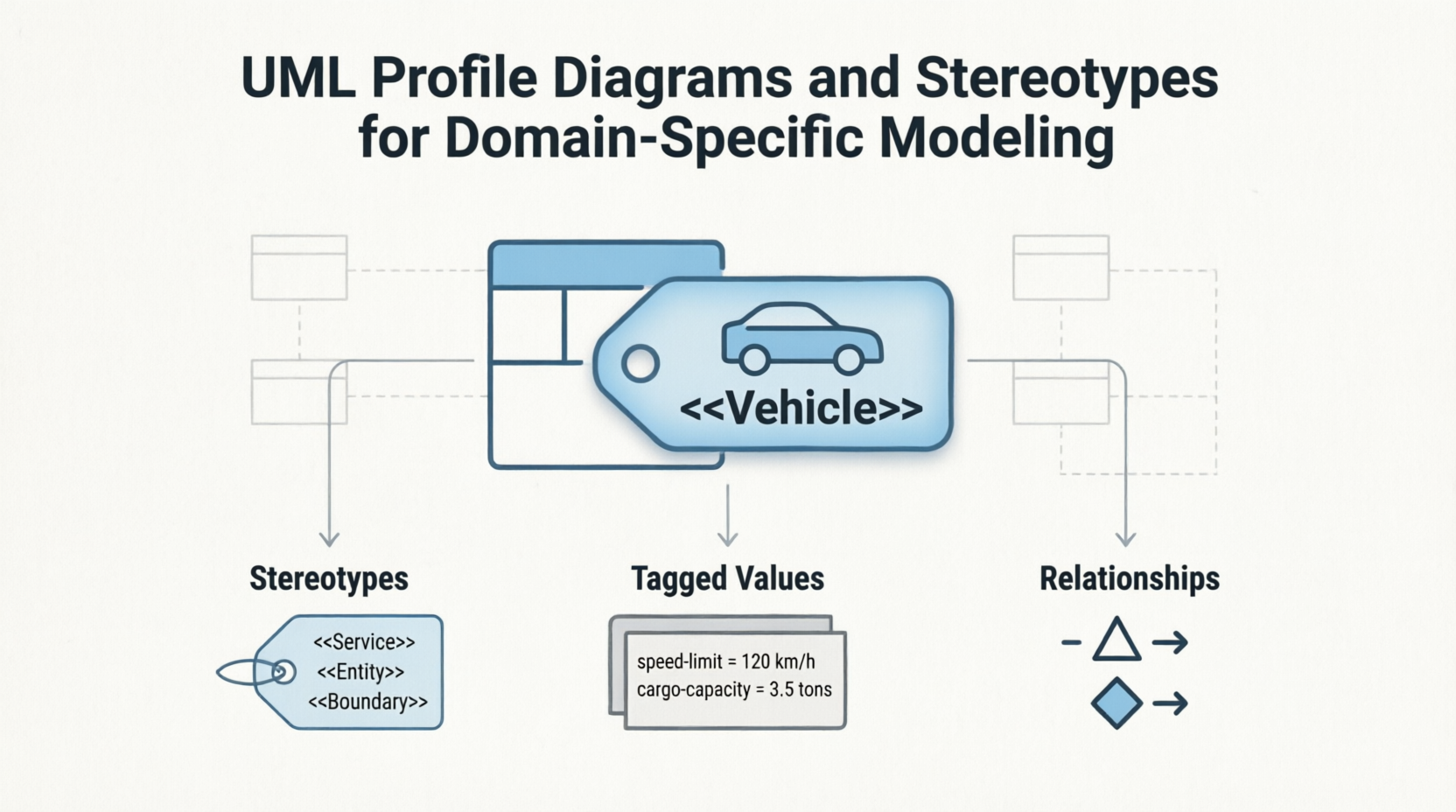
A UML Profile is a package that contains stereotypes, tagged values, and constraints. It acts as an extension mechanism that allows you to adapt UML for particular domains (e.g., real-time systems, business processes) or platforms (e.g., J2EE, .NET). Rather than creating new modeling elements from scratch, a profile leverages existing UML metaclasses and extends them with additional semantics.
Class element, a stereotype might allow you to define a <<Vehicle>> class, which carries specific implications for the automotive domain.<<Vehicle>> stereotype might have a tagged value for speed-limit or passenger-capacity.Class metaclass, meaning your stereotype can be applied to any class in your model.<<Pickup Truck>> is a specialized type of <<Vehicle>>).<<Vehicle>> is composed of an <<Interior>>).To illustrate the power of UML Profiles, we will walk through the creation of a custom profile for a vehicle engineering company. This profile will enable engineers to model vehicles with specific attributes such as speed limits, transmission types, and interior configurations, which are not natively supported in standard UML.
The first step is to establish the container for our custom extensions. In Visual Paradigm, this is done by selecting Modeling > Profile > New Profile from the application toolbar.

Upon creation, a new profile diagram opens, prompting for a name. We enter Vehicle Engineering Profile to clearly identify the domain scope of this extension.

With the profile diagram active, we begin by defining the core concept of our domain: the Vehicle. We select the Stereotype tool from the diagram toolbar.

Clicking on the diagram initiates the creation process. We are immediately prompted to choose the base type. Since vehicles in our system will be represented as classes with attributes and operations, we expand the Class node and select Class as the base type.

After confirming, we name the stereotype Vehicle. This creates a visual representation of our new domain-specific element.

A stereotype without data is merely a label. To make the <<Vehicle>> stereotype useful, we need to attach domain-specific properties. We right-click the Vehicle stereotype and select Open Specification..., then navigate to the Tagged Value Definitions tab.
We begin by adding a floating-point number tag named speed-limit. This allows us to specify the maximum speed for any vehicle modeled with this stereotype.


Next, we add integer tags for passenger capacity and id, and an enumeration tag for automatic-transmission. Enumeration tags are particularly powerful as they restrict input to a predefined set of values, ensuring data consistency.

To configure the automatic-transmission tag, we click the ... button in its Default Value cell. In the Edit Enumeration window, we add two possible values: yes and no. We select yes and check Default value to ensure that unless specified otherwise, vehicles are assumed to have automatic transmission.


Real-world domains are rarely flat; they involve hierarchies and compositions. We can model these relationships between stereotypes using Generalization and Composition.
To model the physical structure of a vehicle, we use composition. We hover over the Vehicle stereotype and press the Resource Catalog button that appears at the top right of the shape. Dragging it out and releasing it in empty space allows us to select Composition -> Stereotype.


This creates a new stereotype named Body, which is automatically based on the Class metaclass. This signifies that every <<Vehicle>> is composed of a <<Body>>.

Next, we model specialization. A Pickup Truck is a specific type of Vehicle. Using the Resource Catalog again, we choose Generalization -> Stereotype.

We name this new stereotype Pickup Truck. The resulting diagram shows the inheritance relationship, indicating that <<Pickup Truck>> inherits all tags and properties from <<Vehicle>>.

We continue to flesh out the profile by adding tags to the new stereotypes. The Body stereotype receives a text tag painting, and the Pickup Truck stereotype receives a floating-point tag cargo-capacity.

To demonstrate deeper nesting, we create two more specialized stereotypes, Mini and Convertible, derived from Vehicle. We also add a composite stereotype Interior to Vehicle, and another composite stereotype Seat to Interior. The Interior gets a tag int-painting, and the Seat gets tags for texture and pattern. The completed profile diagram now represents a rich, hierarchical domain model.

Once the profile is defined, it becomes available for use in standard UML diagrams. Let’s create a class diagram to model a specific vehicle using our new profile.
We start by creating a new Class Diagram via Diagram > New. We then create a standard class named Light Motor Vehicle.

To apply our custom semantics, we right-click the class and select Stereotypes > Edit Stereotypes. From the list of available stereotypes in our Vehicle Engineering Profile, we select Pickup Truck and add it to the class.


With the stereotype applied, we open the Tagged Values tab. Here, we see all the tags defined in the <<Pickup Truck>> stereotype, as well as those inherited from <<Vehicle>> and its composited parts like <<Body>> and <<Interior>>. This centralized view allows for comprehensive data entry.

For composite stereotypes like Body, we click the ... button in the Value cell. This opens the Sub-level Tagged Values window, where we can specify details for the nested components, such as the painting color of the body or the texture of the seats.

<<Vehicle>> is better than <<V1>>.UML Profiles provide a powerful mechanism for bridging the gap between general-purpose modeling languages and specific domain requirements. By defining stereotypes, tagged values, and relationships, engineers can create models that are not only visually structured but also semantically rich and precise. The case study of the Vehicle Engineering Profile demonstrates how easy it is to extend UML using tools like Visual Paradigm, enabling teams to capture complex domain logic directly within their diagrams. Whether you are working in automotive, finance, healthcare, or any other specialized field, mastering UML Profiles will enhance the clarity, accuracy, and utility of your software models.
Know-how: Define and specify stereotype in BPD: A technical guide on defining and specifying stereotypes within Business Process Diagrams and other UML contexts.

