
In the complex landscape of software development, clarity is currency. Before a single line of code is written, teams must agree on what the system should do and how users will interact with it. This is where Use Case Modeling becomes indispensable.
Use case modeling is not just about drawing boxes and stick figures; it is a strategic communication tool that bridges the gap between business stakeholders, product managers, and engineering teams. It captures functional requirements from the user’s perspective, ensuring that the final product delivers real value.
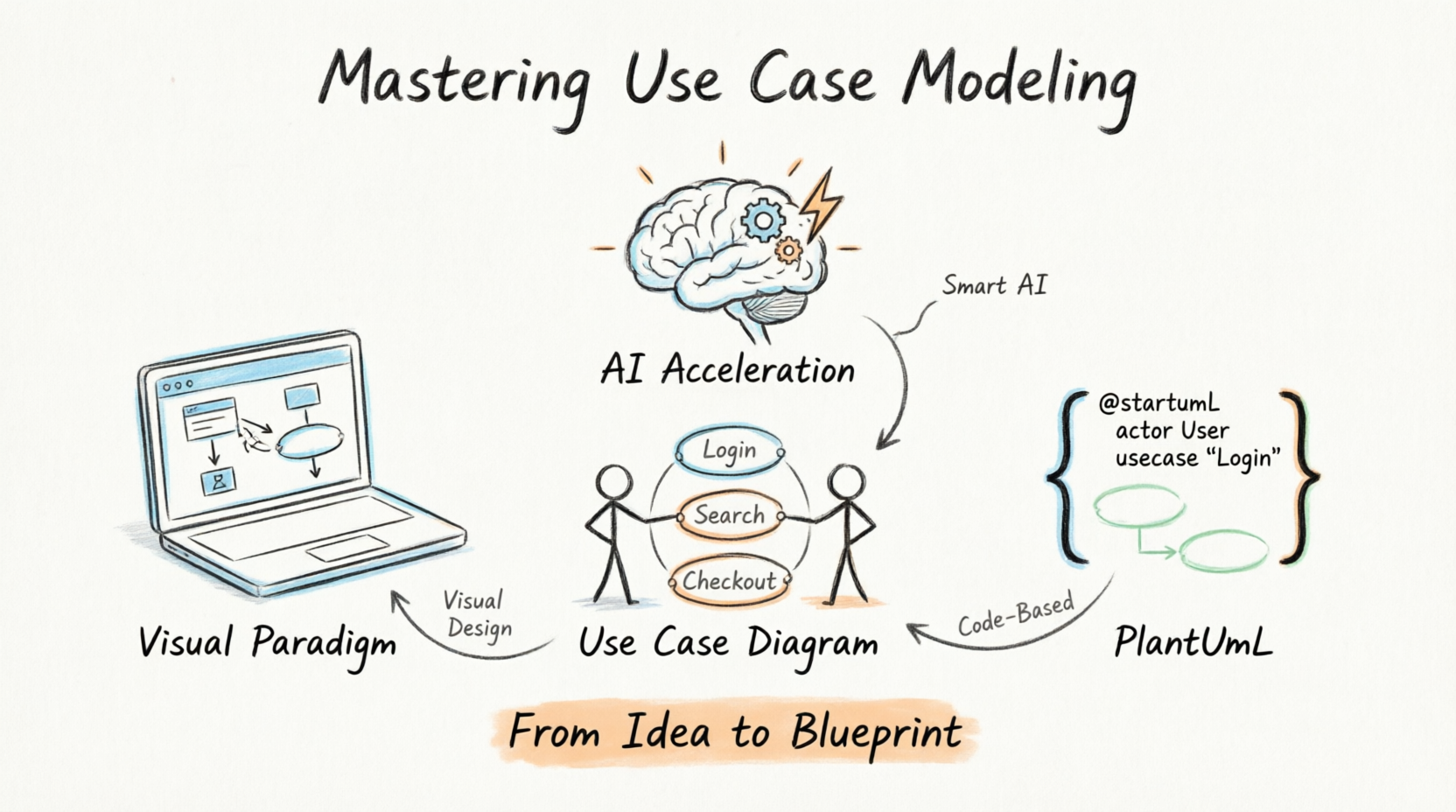
However, traditional modeling can be time-consuming and prone to inconsistency. This tutorial explores how to master in-depth use case modeling by combining industry-standard tools like Visual Paradigm with the flexibility of PlantUML and the emerging power of AI acceleration. Whether you are a beginner looking to understand the basics or an experienced practitioner seeking to streamline your workflow, this guide will provide you with the templates, workflows, and code examples needed to create robust, maintainable, and clear use case models.
A use case diagram provides the "big picture," but the Use Case Description (or Specification) contains the devil in the details. A high-quality description ensures that developers know exactly what to build and testers know exactly what to verify.
| Field | Content |
|---|---|
| Use Case ID | UC-01 |
| Name | Place Order |
| Primary Actor | Registered Customer |
| Preconditions | Customer is logged in; Cart contains at least one item. |
| Postconditions | Order is created; Inventory is reserved; Payment is processed. |
| Main Success Scenario | 1. Customer reviews cart. 2. Customer selects shipping address. 3. System calculates total including tax/shipping. 4. Customer enters payment details. 5. System validates payment. 6. System confirms order and sends email. |
| Extensions | 3a. Invalid shipping address: 1. System displays error. 2. Customer corrects address. 5a. Payment declined: 1. System notifies customer. 2. Customer retries or cancels. |
Visual Paradigm (VP) is a comprehensive CASE tool that supports UML modeling with a rich GUI. It is ideal for teams that prefer visual drag-and-drop interfaces and need tight integration with documentation.
<<include>> stereotype for mandatory sub-functions (e.g., "Place Order" includes "Validate Payment").<<extend>> stereotype for optional behavior (e.g., "Apply Coupon" extends "Checkout").One of Visual Paradigm’s strongest features is its ability to keep diagrams and text synchronized.
This ensures that your diagram never becomes outdated because the source of truth is the model itself.
For teams that prefer version control, code reviews, and rapid iteration, PlantUML is an excellent choice. It uses a simple text-based syntax to generate UML diagrams.
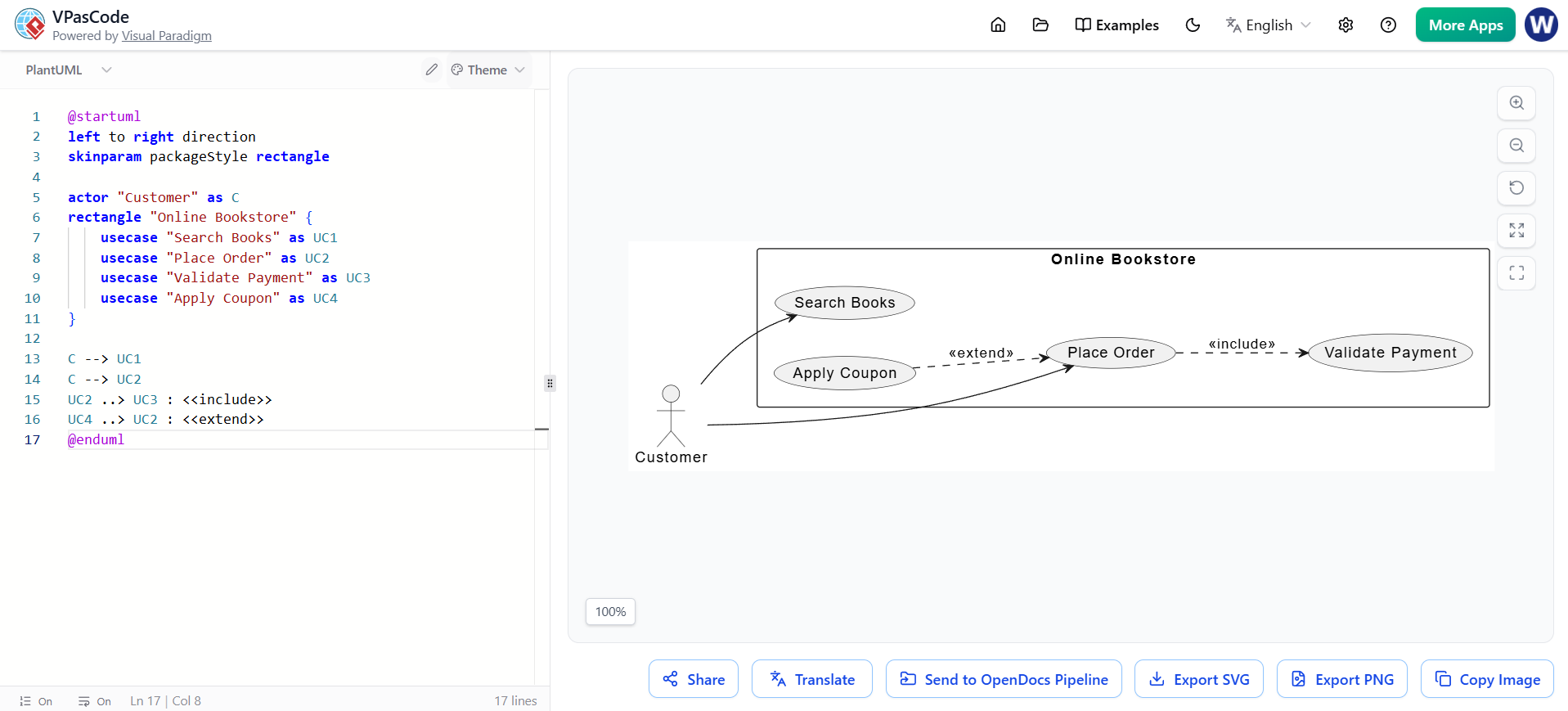
@startuml
left to right direction
skinparam packageStyle rectangle

actor "Customer" as C
rectangle "Online Bookstore" {
    usecase "Search Books" as UC1
    usecase "Place Order" as UC2
    usecase "Validate Payment" as UC3
    usecase "Apply Coupon" as UC4
}

C --> UC1
C --> UC2
UC2 ..> UC3 : <<include>>
UC4 ..> UC2 : <<extend>>
@enduml
Here is a more realistic example involving multiple actors and complex relationships.
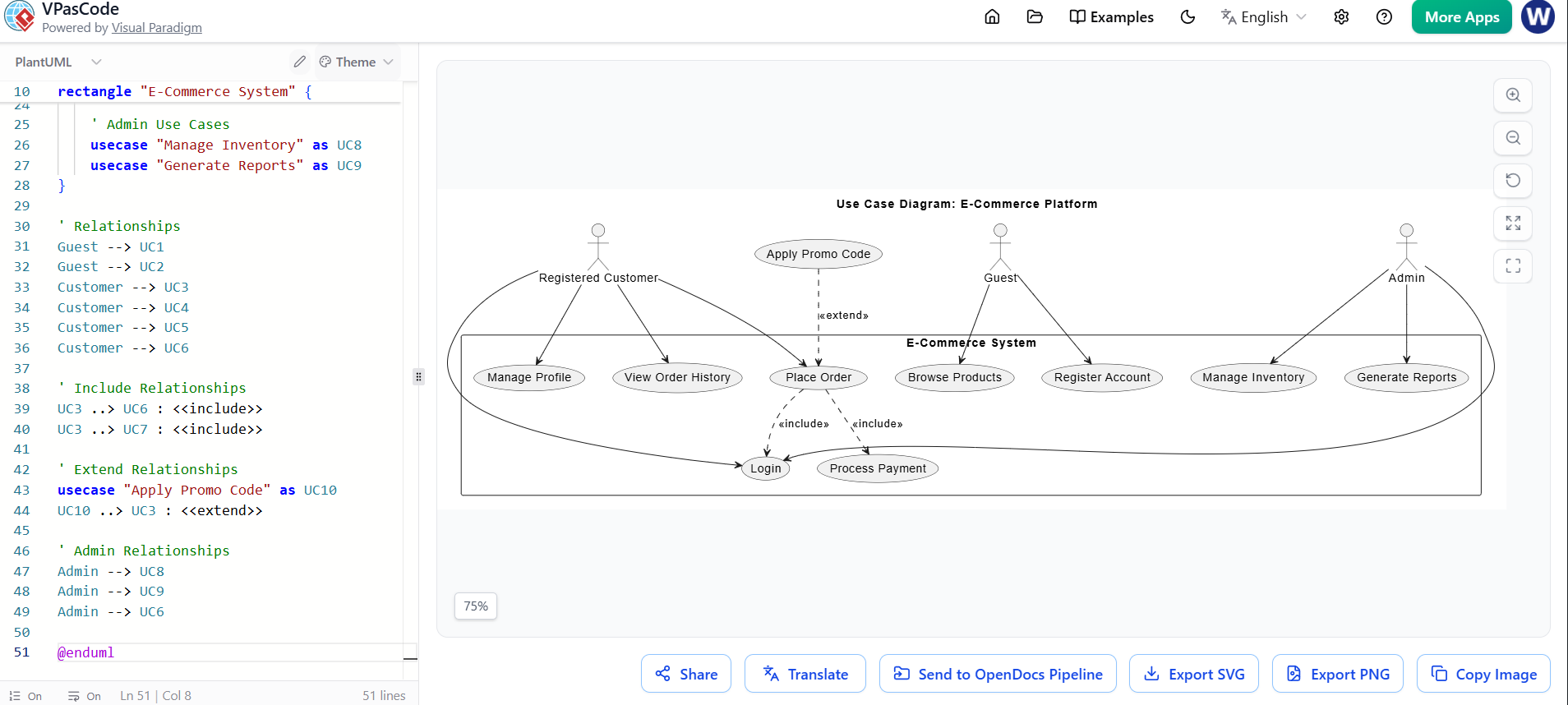
@startuml
title Use Case Diagram: E-Commerce Platform

' Define Actors
actor "Guest" as Guest
actor "Registered Customer" as Customer
actor "Admin" as Admin

' Define System Boundary
rectangle "E-Commerce System" {

    ' Guest Use Cases
    usecase "Browse Products" as UC1
    usecase "Register Account" as UC2

    ' Customer Use Cases
    usecase "Place Order" as UC3
    usecase "View Order History" as UC4
    usecase "Manage Profile" as UC5

    ' Shared/Included Use Cases
    usecase "Login" as UC6
    usecase "Process Payment" as UC7

    ' Admin Use Cases
    usecase "Manage Inventory" as UC8
    usecase "Generate Reports" as UC9
}

' Relationships
Guest --> UC1
Guest --> UC2
Customer --> UC3
Customer --> UC4
Customer --> UC5
Customer --> UC6

' Include Relationships
UC3 ..> UC6 : <<include>>
UC3 ..> UC7 : <<include>>

' Extend Relationships
usecase "Apply Promo Code" as UC10
UC10 ..> UC3 : <<extend>>

' Admin Relationships
Admin --> UC8
Admin --> UC9
Admin --> UC6

@enduml
Looking for a powerful, free diagram-as-code tool? Effortlessly render PlantUML, Mermaid, Graphviz, and 20+ programming languages in real time—powered by instant AI error fixing and automatic format detection.
Visual Paradigm has integrated AI capabilities to accelerate modeling. These features reduce manual effort and help overcome writer’s block.
Scenario: A healthcare clinic wants to digitize its appointment booking system.
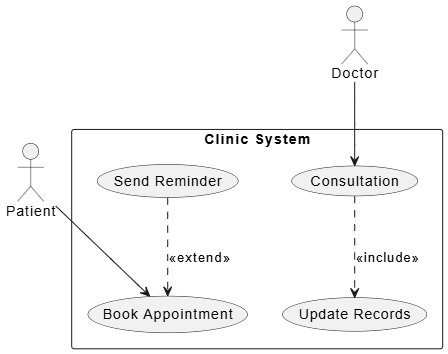
@startuml
actor "Patient" as P
actor "Doctor" as D
rectangle "Clinic System" {
    usecase "Book Appointment" as UC1
    usecase "Send Reminder" as UC2
    usecase "Consultation" as UC3
    usecase "Update Records" as UC4
}
P --> UC1
UC2 ..> UC1 : <<extend>>
D --> UC3
UC3 ..> UC4 : <<include>>
@enduml
<<include>> for mandatory, reusable behavior. Use <<extend>> for optional, conditional behavior.Use case modeling remains a cornerstone of effective product management and software engineering. By mastering the anatomy of detailed descriptions, leveraging the visual power of Visual Paradigm, embracing the flexibility of PlantUML, and harnessing AI acceleration, you can create models that are not only accurate but also agile and maintainable.
The key is not to choose one tool over another, but to use them synergistically. Use AI to jumpstart your thinking, Visual Paradigm to collaborate with stakeholders, and PlantUML to integrate with your development workflow. With these techniques, you will transform ambiguous requirements into clear, actionable blueprints for success.

