Introduction to BPMN Part II - Swimlanes
In a swimming pool, there are lanes designated for swimmers. Swimmers get their own lanes to swim in without swimming across another. The concept of swimming lanes also exists in BPMN.
Swimlanes are rectangular boxes in BPMN that represent the participants in a business process. They can contain flow objects that are performed by the participant associated with that lane, with the exception of black boxes, which must have an empty body (we will discuss black boxes later in this tutorial). Swimlanes can be arranged horizontally or vertically; they are semantically the same, with the only difference being their representation. For horizontal swimlanes, the process flows from left to right, while in vertical swimlanes, it flows from top to bottom. Examples of swimlanes include the customer, accounting department, payment gateway, and development team.
There are two types of swimlanes in BPMN: Pools and Lanes.
Pools
Pools represent the participants in a business process. A pool can be a specific entity (e.g., a department) or a role (e.g., assistant manager, doctor, student, vendor).
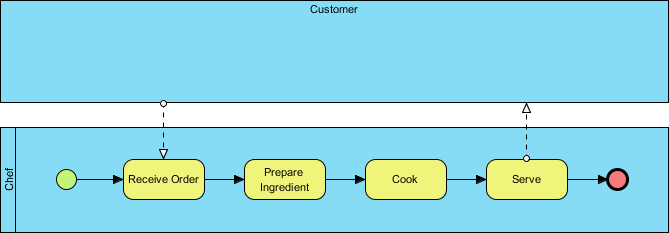
Inside a pool, there are flow elements that represent the work that the participant needs to perform in the process being modeled. However, there is one type of pool that has no content: the black box pool. A black box pool is often used when modeling entities external to the business process. Since it is external, its internal flow has no impact on the process being modeled and can be omitted, creating a black box. The use of a black box depends on the perspective of the process. For example, if you are modeling the process of how a customer places an order, the customer's flow will be modeled, making the chef pool a black box. The following business process diagram provides an example of a black box pool where the customer is a black box. Since the process focuses on how the chef prepares a meal, the customer's actions are not relevant to the process.
Lanes
Lanes are sub-partitions within pools. For example, if you have a pool called "Department," you can have "Department Head" and "General Clerk" as lanes. Like pools, you can use lanes to represent specific entities or roles involved in the process. Lanes can also contain other lanes to form a nested structure if needed. However, since BPMN is primarily used for modeling business processes, you should not try to build nested lanes just to model your organization's structure. If you want to model your organization's structure, use an organization chart instead.
Case Study: The True Aqua Distilled Water Company
The True Aqua Distilled Water Company is a young supplier of distilled water in the city, selling to both residential and business customers. In an effort to increase their market share from 5% to 10% within the next 12-18 months, the company wants to improve its operational efficiency and customer satisfaction. To achieve this, they have identified the need to improve their distilled water ordering process. As the business analyst responsible for this project, you have gathered the following information about the current ordering process from the True Aqua Distilled Water Company.
|
Customers can either call the ordering hotline or send an email to order distilled water. Currently, 90% of orders come from phone calls, while 10% are placed via email. The customer service assistant who receives the order checks whether the customer is new or existing. If the customer has never placed an order before, the assistant creates a customer account for them before processing the order. Distilled water is delivered once a week on Wednesdays. On Wednesday mornings, the customer service assistant forwards the orders to the Logistics Department for delivery. Once the manager in the Logistics Department receives the orders, they arrange the delivery by assigning workers to different orders and printing and posting the schedule. The workers then deliver the water to the customers accordingly. |
Now, you need to model this process in a BPD with BPMN. In this section, you will be guided through the steps to create the necessary swimlanes in the BPD. The process flow modeling will be described in the next part of this tutorial.
- Create a new project by selecting Project > New from the application toolbar. In the New Project window, click Create Blank Project.
- Create a new business process diagram by selecting Diagram > New from the application toolbar.
- In the New Diagram window, select Business Process Diagram and click Next.

- Enter Distilled Water Order Process as the diagram name and click OK to create the diagram. You will see the following window.

Here is a description of the different parts of the user interface:1 Application toolbar The application toolbar provides access to various operations in Visual Paradigm. 2 Diagram Editor The area where you edit your diagram. - From the details of the ordering process, you can identify the following entities that need to be modeled in the BPD: Customer, Customer Service Assistant, Logistics Department, Manager (in the Logistics Department), and Worker (in the Logistics Department). You should model them using BPMN pools and lanes. Let's start by creating the Customer pool. Select Horizontal Pool from the Diagram Toolbar.

- Click on the BPD (in the Diagram Editor) to create a pool. Enter Customer as the pool name and press Enter to confirm.

Note that a pool extends the entire length of the diagram horizontally. - You could create separate pools for the Customer Service Assistant and the Logistics Department, but to emphasize that they are part of the same company, it's better to create a pool for The True Aqua Distilled Water Company and make the Customer Service Assistant and Logistics Department lanes within that pool. Create a pool below the Customer pool and name it The True Aqua Distilled Water Company.

- Now, let's create the lanes. Right-click on the The True Aqua Distilled Water Company pool and select Add Lane from the popup menu.

- Enter Customer Service Assistant as the name and press Enter to confirm.
- Create a Logistics Department lane below the Customer Service Assistant lane. Right-click on the Customer Service Assistant lane and select Insert Lane After from the popup menu.

- Enter Logistics Department as the name and press Enter to confirm.
- The lanes are too wide, so let's resize them. Click and drag the lane border upwards to resize the Customer Service Assistant lane. To resize the second lane, click and drag the bottom pool border upwards.

At this point, the diagram should look like this:
- Within the Logistics Department, there are two roles involved in the process: the manager and the worker. For this reason, you should create them as nested lanes inside the Logistics Department lane. Right-click on the Logistics Department lane and select Add Child Lane from the popup menu.

- Enter Manager as the name and press Enter to confirm.
- Right-click on the Manager lane and select Insert Lane After from the popup menu.
- Enter Worker as the name and press Enter to confirm. Your BPD should now look like this:
