Communicate Process Design with Stakeholders, Using PostMania
Communication is one of the most important aspects of agile software development. Be it through the phone, via email or face-to-face meeting, by getting stakeholders involved in a project as much as possible, you have more chances to know their needs and to incorporate their feedback into the software product, minimizing the risk of developing faulty features.
Communication is important, yet it's not always easy to gather different stakeholders for a meeting. PostMania is a tool that can help.
PostMania is a design-based communication tool tailored for agile project teams. By using PostMania, team members can share business process designs with stakeholders online. Stakeholders can view and confirm the designs anytime and anywhere, raise questions, and challenge design decisions by posting their feedback on the diagrams, or even on a specific shape in a diagram. Team members will be notified, and changes and replies can be made quickly.
The use of PostMania offers several benefits. First, the conversation between the development team and stakeholders is all centered around the diagram, or even a specific shape, which ensures that the communication is unambiguous. Second, the post messages are kept with the project, which provides a way for team members to trace back important discussions made before.
Preparation
To avoid messing up your production data, we have prepared a project file for you to walk through this tutorial. Please download the project file Delivery Services.vpp and ask your server administrator to import it into the server. By the end of this tutorial, you can ask the administrator to delete the project file from the server.
This tutorial will show you how to communicate with stakeholders using PostMania. While the tutorial is written from the perspective of a business/system analyst, the final section will show you how a stakeholder can start viewing a process design and leaving comments.
Enabling PostMania on a Project
To use PostMania on a project, an administrator must enable the 'PostMania' option on that project in Visual Paradigm Online ("VP Online") or Teamwork Server, depending on your team's hosting option.
- Log in to VP Online/Teamwork Server as an administrator in a web browser.
- Open the Projects tab at the top of the page.
- From the project list, select the Delivery Services project. We are assuming that you have already imported the sample project to the server as instructed in the previous section. If not, please read the previous section again.
- On the right-hand side, click on the PostMania tab.
- Check Enable PostMania. If it has already been checked, just keep it as is.

- Click Save.
Enabling Viewer Invitation
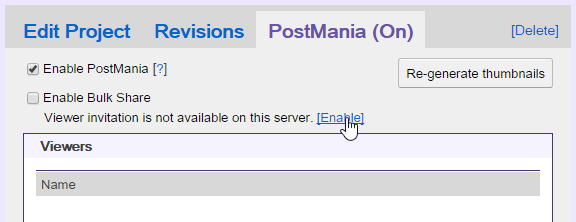
You will need to invite stakeholders to join PostMania for them to view your design. The invitation involves sending an email, so the mail server must be configured first. If you are using VP Online, we have already done this for you, so you can skip this section and proceed to the next. For Teamwork Server users, please click the [Enable] link as shown in the screen below. Then, enter the mail server configuration and click Save.
Sharing a Process Design with Stakeholders
Let's say you have just finished a business process design and you want a user to review it. In this section, you will share the diagram with the user.
- Start Visual Paradigm.
- Open the Delivery Services project from the server. You can open a project by selecting Project > Open from the application toolbar.

- Open the Business Process Diagram (BPD) named Delivery of Shipment (Local).

- Open the action bar by clicking on the tiny button on the right-hand side of the diagram.

- Click on PostMania Topic Pane on the action bar. On the right-hand side of the diagram, you will see the PostMania Topic Pane, which is where discussion topics and content are listed.

- At the top of the PostMania Topic Pane, click the Share button and select Invite Viewers... from the popup menu.

- In the Invitation window, enter the email of the user you want to invite. In this tutorial, please enter an email address that you can access. You can invite multiple people by separating their email addresses with a comma. Press Enter to confirm the email address(es).

- Click Send Invitation Email.
Posting a Comment as a Stakeholder
Once you have invited someone to view your process design, they will receive an invitation email explaining what PostMania is and how to view your process design through it. Now, let's play the role of your user to see what they need to do to view your process design.
- Check your email. You will find the invitation sent by VP Online.

- Click on Accept Invitation in the email.

- A web browser will open. Enter your display name and password, then click Accept Invitation to continue. Your profile avatar is optional.

- You will be presented with the BPD shared in the previous section. You can now study the process design. You can scroll, pan, and zoom the diagram. You can also click on individual flow elements to read their descriptions, if any.

- Let's say you want to say something about the Notify Customer by Email task. Click on it first.

- Click the purple button above the task to post a topic.

- Enter the post content: Please change to notify by SMS.

- Click Post at the bottom to send the message.

Following Up on a Stakeholder's Comment
The previous section showed you what stakeholders will do to verify and comment on your work using PostMania. Let's say you are now the analyst. Follow the steps below to follow up on the client's comment.
- You should see a notification at the bottom right of the status bar in Visual Paradigm. Click on it.

- You will be taken to the PostMania page. The posts created for you are listed on the left.

- Click on the post to open it.

- The post will be shown on the right. You can reply at the bottom of the screen, but let's open the diagram to check the problem in detail. Click Open at the top right corner.

- The BPD will open with the Notify Customer by Email task automatically selected, and the post message will be displayed.

- Let's correct the design. Rename the task to Notify Customer by SMS.

- Commit the changes by selecting Team > Commit from the application toolbar.
- Let's inform the post creator about the design correction. Click on the Click here to reply field at the bottom of the PostMania Topic Pane and enter: Design corrected.

- Click Post. When your client visits PostMania again, they will receive a notification about the change you've made. They can then review your work again and provide further comments.
