How to Define Project Terms with Glossary?
System specification plays a significant role in projects which helps your team and you to understand the software system. However, there is a hidden risk in the specification document, that is, a single term can have different meaning under different conditions. To avoid having ambiguity, Visual Paradigm supports defining domain terms for your project as glossary. By defining glossary, team members can have a clear understanding on domain terms. In this tutorial, we will show you how to define domain terms as glossary, and to produced a document of glossary that facilitates information sharing.
Creating Terms
There are two ways to create domain terms in Visual Paradigm.
From Glossary Grid
To create terms from the glossary grid:
- Select Modeling > Glossary from the application toolbar to create a glossary grid.

- Click on the New Term (Insert) button in the toolbar to create a term.

- Enter the name of the term and press Enter to confirm.

- Right-click on the term and select Open Term Editor from the popup menu.

- Enter the definition of the term.

From Project Content
Besides creating terms one by one in the glossary grid, you can also extract terms from project content. To do this:
- Highlight the textual content from the name and description of any model elements, or from the conversation, confirmation, and scenario of any user stories.
- Right-click on the highlighted text and select Add %TERM_NAME% to Glossary.

After that, the highlighted text will become a term, and you can define its definition in the Term Editor.
Navigate from Model Content to Terms
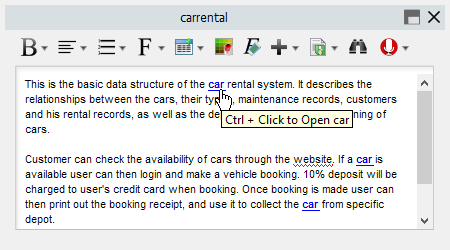
You can easily navigate from the highlighted glossary terms in any part of your project back to the glossary grid by pressing Ctrl + Click on it.
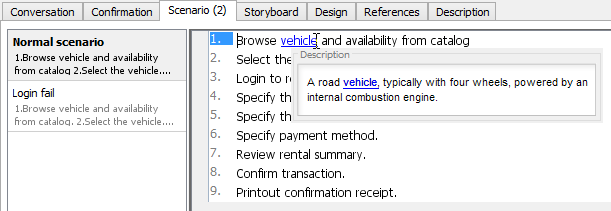
The definition of the term will also be shown when you place your mouse pointer over a term in the conversation, confirmation, and scenario of a user story.
Defining Aliases for Domain Terms
Sometimes, you may have multiple terms meaning the same concept in your project. Instead of defining multiple terms for the same concept, you can pick one as the domain term and list the others as aliases of that term. This implies that all those terms share the same business meaning. To define aliases for your terms:
- Double-click on the term to open the Term Editor.
- Click the Add button next to the Aliases field.

- Fill in the name of the alias and click OK to confirm.

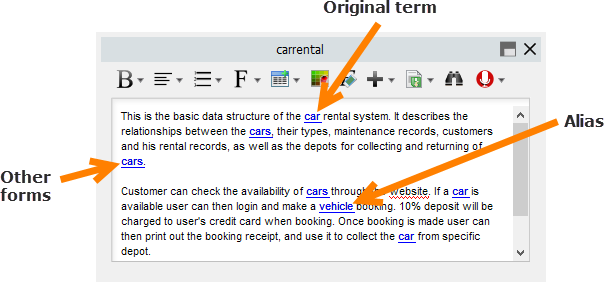
After that, the aliased terms will also be highlighted in your project content, and you can navigate back to the original term in the same way as standard terms.
Defining Variations for Domain Terms
In real life, a term could have certain variations (e.g., singular and plural forms) that have exactly the same meaning. In Visual Paradigm, you can define such variations as other forms of the domain term. To define variations for your terms:
- Select the term in the glossary grid.
- Click the Open Specification... button at the top of the glossary grid.

- Click the Edit Other Forms button.

- Click the Add button below Other forms.

- Fill in the variation of the term and press Enter to confirm.

- Click the OK button to close the specification window.
After that, the alternative form will also be highlighted in your project content, and you can navigate back to the original term in the same way as standard terms.
Generate Domain Terms Specification
Once you have finished defining the domain terms for your project, you can then generate a document of the glossary and distribute it to your teammates.
- Select Tools > Doc. Composer from the application toolbar.
- Choose Build from Scratch.

- Select Glossary Grid from the Diagram Navigator.

- Drag out the Grid Diagram template from the Template Pane and drop it onto the document.

- Select Export > PDF Document... at the top right corner of Doc. Composer.

- Fill in the Title for the document and specify the Output Path.

- Switch to the Cover Page tab, keep Generate default cover page checked, and fill in the Title.

- Click Export at the bottom right to generate a PDF document.