How to Convert a Model Element to Another Type?
Despite visual modeling may vary in approach and scope, there is a basic principle shared in common. That is, rather than a one-off action, visual modeling is a continuous activity. As your project develops, requirements will be set, issues will be found, old requirements may no longer be valid, etc. Inevitably, all these lead to changes in your existing design. When re-drawing could mean a bigger time investment, you would most likely refine your existing diagrams instead. In such case, the ability to convert a model element in the diagram from one type to another will be very useful.
When Should You Convert a Model Element Type?
UML supports a rich set of notations, so you can always find the best one for a thorough expression. When the type of an element is no longer appropriate or is not the best type to express an idea, you will want to replace it with a better notation. Here are some situations where type conversion is needed.
Design Evolution
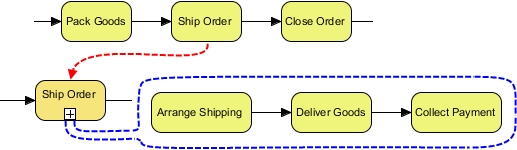
Take BPMN as an example. "Task" and "sub-process" are two notations introduced by BPMN. They both model activities to be done within a business process. If you need to model an order processing system with BPMN, you might initially use a BPMN task to model the Ship Order activity. As the design evolves, let's say that shipping an order turns out to be much more complex than you thought and involves several sub-activities, such as arranging shipment, delivering goods, collecting payment, etc. To depict this, you would need to convert the atomic task to a sub-process, not only to represent its complex nature but also to make it possible to drill down into the process and model its details.
Correcting Mistakes
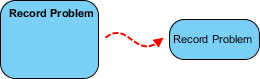
Things are never perfect, and neither is our work. Sometimes, your knowledge of a modeling language may fall short, and you might mistakenly apply the wrong type of model element in your design. For example, you could have incorrectly treated a UML activity as a UML action. When you realize your mistake, you will want to correct it.
Describe More Precisely What You Want to Express
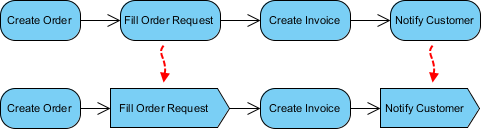
Some notations are subtypes of a more general one. For example, a send-signal-action is a kind of UML action that creates a signal from its input and transmits it to the next object. While using a UML action in a broad manner is not exactly wrong, using a send-signal-action would reflect the truth more precisely.
Convert Action to Send-Signal-Action
In this tutorial, we will try to convert several general UML actions in an activity to send-signal actions. Take a look at the diagram below. An order is created initially. Then, a shipment request is sent to the warehouse. After that, an invoice is created and sent to the customer. Since signals are sent by the Fill Order Request and Notify Customer actions, we will convert them to send-signal-actions.
Create a UML activity diagram. Draw the diagram below to get ready for the tutorial.

- Select Window > Application Options... from the application toolbar.
- The convert-type function is an advanced feature that can only be accessed when running in Advanced UI mode. Select General from the list on the left-hand side.
- Under the Environment page, check Advanced UI mode.
- Click OK.
- Save your project and restart Visual Paradigm.
- Right-click on the Fill Order Request action and select Related Elements > Change Type... from the popup menu.
- In the Change Model Element Type dialog box, enter Send Signal Action for the type to convert to.

- Click Next.
- Due to the difference in the element type, some properties, relationships, and tagged values may no longer be compatible after the conversion and will be discarded. In the Change Model Element Type window, you will find the properties, relationships, and tagged values that will be kept and discarded after the conversion. The data that will be discarded is on the left-hand side, while the resolvable data is on the right.
- Click OK at the bottom right. Note that the undo history will be cleared after the conversion, meaning that you cannot perform any undo actions after it. This is the updated diagram:

- Convert Notify Customer from a UML action to a send-signal-action. Finally, the diagram should look like this:
