How to Maintain a Glossary for Multiple Projects?
In Visual Paradigm, you can identify specific term by adding it to glossary and enter its definition as description. However, if different projects share many common terms which have common definitions, you may have to define them many times. As a result, time is very consuming and there are risks of missing some of them or defining them incorrectly by mistake, creating not standardized definitions.
Moreover, after you have defined many common terms in different projects, if you want to edit the definitions, you need to amend them one by one, project by project. Consequently, the same problems arise. In this tutorial, we will teach you how to solve the problem by simple procedures.
Centralizing Glossary Terms
Let's say you have two projects that contain the word Patient, which has the same definition as shown in the diagrams below:
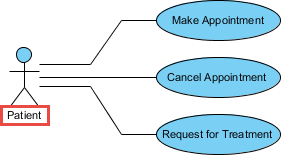
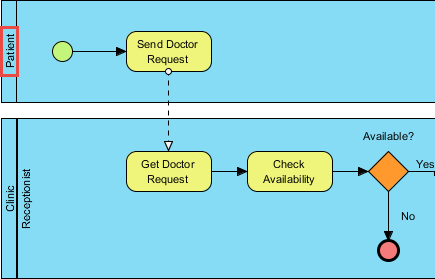
To solve this problem, you can centralize the common glossary term—in this case, Patient—into a common glossary project. After that, add this glossary project as a referenced project to the two projects that contain the word Patient. (The detailed steps will be shown in a later section.)
The benefit of centralizing the common glossary term is that it saves time because you can simply add the common glossary project to all projects that contain the common terms. Furthermore, since all projects are referenced to the same common glossary project, it guarantees that the definitions in all projects are completely standardized. If you want to amend the definition of a term, you can simply edit it in the common glossary project, and the corresponding term in all projects (that you have added this referenced project to) will automatically be updated. This also saves time and avoids missing any of them when you need to amend a word. Therefore, centralizing the common glossary term completely solves these problems.
Steps to Centralize Glossary Terms in a Common Project
- Create a new project with Visual Paradigm. Select Project > New from the application toolbar.
- In the New Project window, enter Common Glossary Terms as the project name. Click the Create Blank Project button.

- Select Modeling > Glossary from the application toolbar to open the glossary.

- Create a new term by clicking New Term (Insert) at the top of the glossary grid.

- Enter Patient as the name of the term and press Enter to confirm.

- Let's give the term a description. Open the description pane by clicking on Show Description on the right-hand side of the status bar.

- Select the term Patient and enter A person who is under medical care or treatment in the description pane.

- Select Project > Save from the toolbar to save the project.
- Download the Sample Use Case Diagram.vpp. This is the project that contains the use case diagram shown above.
- Open the downloaded project file in Visual Paradigm. You can open a project by selecting Project > Open... from the application toolbar.
- Select Project > Referenced Project from the toolbar.

- In the Manage Referenced Projects window, click Add and then select the Common Glossary Terms project.

- Click Close.
- Open the only use case diagram in the project. You will see that the word Patient is highlighted and underlined. This is because the word has been found to be a glossary term.

- Move the mouse pointer over the word Patient, press the Ctrl key, and click on it.

- You can then read the description of Patient.

- Repeat the same set of steps on the BPD in the project Sample BPMN Business Process Diagram.vpp. You should see the pool name Patient being highlighted. With the technique described in this tutorial, you can create a central repository of glossary terms and have other projects reference it to access the definition of terms.
