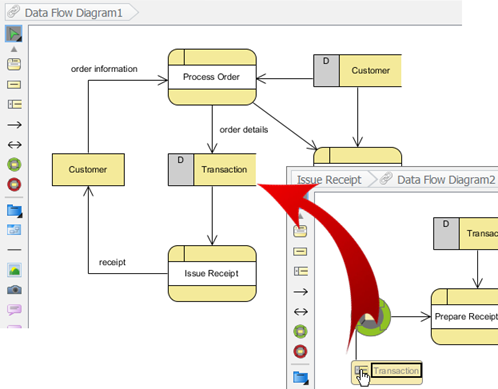
How to Bridge the Flows between Parent and Sub-Diagrams?
When modeling complex systems, we often use the sub-diagram to elaborate a particular elements in details. This helps to keep our design clean and context sensitive. However, in previous versions, sub-diagram didn't explain how the flows were associated between parent element and the child diagram. In Visual Paradigm, you can now display the in-flow and out-flow element in sub-diagram in certain situations, which helps you to identify the flows between diagrams.
In version 12.0, the elements for the incoming and outgoing flows are automatically pulled into the sub-diagram when:
- Modeling the behavior of an action in UML Activity Diagram

- Modeling the detail of a submachine state in State Diagram

- Modeling the detail of a sub-process in Business Process Diagram

- Decomposing the process in a Data Flow Diagram

Once the sub-diagram is created and the incoming and outgoing flows are pulled into the sub-diagram, you can then start modeling the sub-diagram from the incoming flow and end with the outgoing flow.
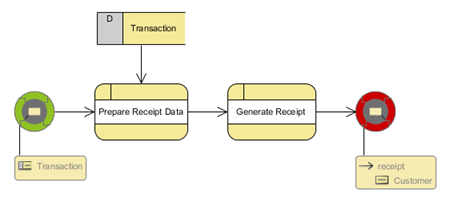
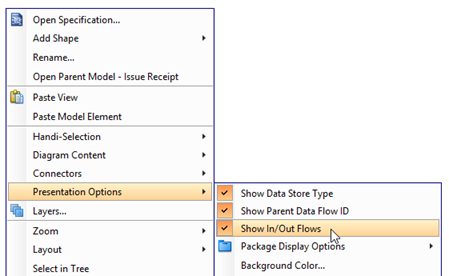
To turn on the in-flow and out-flow indicator, right-click on the blank area of the diagram and select Presentation Options > Show In/Out Flows.
Once the in-flow and out-flow indicators are shown, you can navigate to the parent diagram by double-clicking on it.