What is Package Diagram? How to Draw Package Diagram?
At the beginning of the project, you only have a limited number of diagrams and everything is simple and beautiful. However, when time flies, more and more diagrams have been created and they start to become unmanageable. As a result, your project becomes hard to navigate and diagrams become difficult to locate when you want to review or make changes.
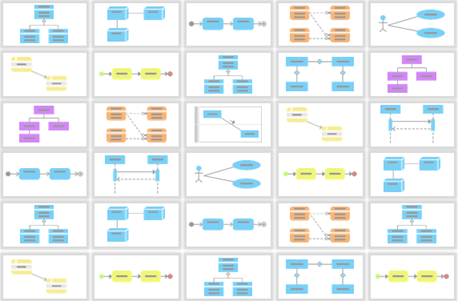
How can we fix it? We can use the Package Diagram to organize your diagrams into different packages. This helps you categorize your diagrams according to their natures, making them easier to navigate and locate. The Package Diagram also serves as a catalog for you to jump to the diagram you want to look at. In this tutorial, we will show you how this can be done.
Create Packages for Your Diagrams
First, we need to have our packages ready. To create packages:
- To create a Package Diagram, select Diagram > New from the toolbar.
- In the New Diagram window, select Package Diagram and click Next.
- Enter Racing Game Packages as the diagram name and click OK to confirm.

- Click the Package button in the diagram toolbar, then click on the blank area of the diagram to create the package.

- Name the package Race.

- Repeat the steps to create other packages, namely, Tuning, Security, and General, respectively.

Organize Diagrams with Packages
Once the packages are ready, we can then start to organize our diagrams.
- Click on the Race package to bring up the sub-diagram resource icon.

- Click on the resource icon, then select Existing Diagrams... from the popup menu.

-
Select the following diagrams in the Add Sub Diagrams dialog, then press OK to commit.
- [Class Diagram] Race Tracks
- [Class Diagram] Race Type
- [Class Diagram] Racing Game
- [Sequence Diagram] Register to race
- [Communication Diagram] Register to race - Communications
- [State Machine Diagram] Race Series State
- [Activity Diagram] Register to race
- [Entity Relationship Diagram] Player Race
- [Entity Relationship Diagram] Race Series
- [Entity Relationship Diagram] Racing Game

-
Repeat the steps for the following packages and diagrams:
Package Diagram Tuning [Class Diagram] Tuning
[State Machine Diagram] Car State
[Entity Relationship Diagram] CarsSecurity [Sequence Diagram] Game Service Login
[Sequence Diagram] Purchase Add-ons (fail)
[Sequence Diagram] Purchase Add-ons (success)
[Sequence Diagram] Racing Game Login
[Business Process Diagram] Purchase Add-onsGeneral [Use Case Diagram] Racing Game Use Cases
[Component Diagram] Game Components
[Deployment Diagram] Game Deployment
[Requirement Diagram] General Requirements
[Matrix Diagram] Classes Matrix
[Matrix Diagram] Entity Matrix
[Matrix Diagram] Process Matrix
[Analysis Diagram] Player Analysis Diagram
Define Relationships Between Packages
Now, since our diagrams are structured with packages, we can define the relationships among them. To create relationships between packages:
- Click on the Race package to show its resource icon.
- Drag out the Resource Catalog button and drop it at the Security package.

- Select Dependency -> Package in the Resource Catalog.

- Repeat the steps to create a dependency from Tuning to Security and also from Security to General.

Navigate Between Packages and Contained Diagrams
The Package Diagram can act as a starting point for you to navigate within your project. To navigate from one diagram to another:
- Click on the package to bring up the resource icons, say the Race.
- Click on the sub-diagram resource icons. This will bring up a list of sub-diagrams under the Race package.

- Locate the diagram from the popup menu, say the Racing Game class diagram, and then click on it.

- You are now brought to the Racing Game class diagram.
- You can go back to the package by clicking the link at the top left corner of the diagram.

Publish a Project to HTML with a Package Diagram as the Navigation Map
This kind of handy navigation is not limited to within the application. You can also have it inside the published HTML website. To publish your project into an HTML website:
- Save your project by selecting Project > Save from the toolbar.
- Select Tools > Doc > Publish Project... from the toolbar.
- Enter the output location for the publisher in the Output directory field.

- Press the Advanced Options... button to bring up the advanced settings.

- Select index.html (without menu) in the Generate menu combo box.

- Select Open subdiagrams in Drill down effect for general models.

- Choose Select a diagram in the Default diagram combo box.

- Pick the Racing Game Packages and press OK.

- Press OK to close the Advanced Options dialog and press OK again in the Project Publisher dialog to start publishing.

- Press OK when publishing is completed. This will launch the browser and with the Racing Game Packages diagram showing.

- You can click on the package to bring up the popup menu to jump to the sub-diagram, say the Racing Game class diagram.

- And in the sub-diagram, you can always go back to the parent package by clicking the link at the top of the page.

Download Sample Project
You can download the sample project to walk through this tutorial.
Watch This Tutorial on YouTube
Here is the video version of this tutorial.